
FirexportGuides
How to import production Firestore data into the emulator
The Firestore emulator starts empty and forgets everything when it stops. Firebase’s docs cover saving and loading the emulator’s own data, not getting production data in. There are three ways. Load the data once, save it to a folder, and the emulator starts with it every time.
Updated November 17, 2026. Firexport, the extension in method 1, is ours. Methods 2 and 3 don’t need it.
The short answer
- A sample of a collection, on any plan: export it to JSON from the console with a browser extension and write it into the emulator with a short script. Method 1
- Collections with their subcollections, every type exact: an Admin SDK script that reads production and writes into the emulator. Method 2
- The whole database, on the Blaze plan: a managed export, downloaded and started with --import. Method 3
| 1. Firexport JSON + seed script | 2. Admin SDK copy | 3. Managed export + --import | |
|---|---|---|---|
| What you get | The results of one query | The collections you name, with subcollections | The whole database |
| Field types | Numbers, maps and arrays kept; timestamps, geopoints and references converted by the script | All kept | All kept |
| Billing enabled | Not needed | Not needed | Required (Blaze plan) |
| Billed reads | About one per document in the results | Two per document (it reads it, and lists its subcollections) | One per document, plus the bucket’s storage |
All three need the Firebase CLI and Java 21 or later: firebase-tools 15 stops with “firebase-tools no longer supports Java version before 21”. Writes to the emulator cost nothing; reading production does.
1. Export JSON with Firexport, then seed the emulator
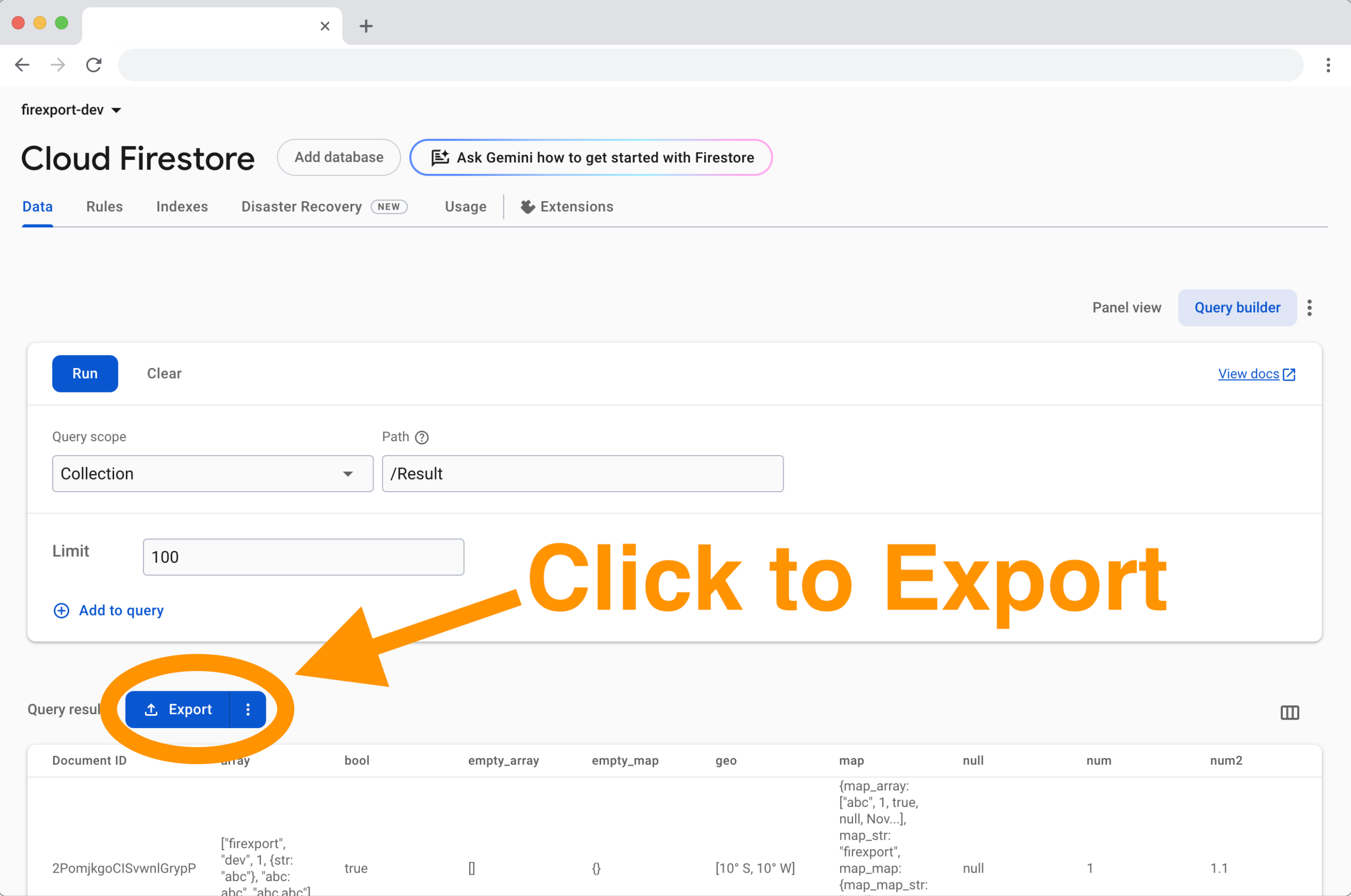
Firexport is a free Chrome extension that adds an Export button to Firestore’s Query builder in the Firebase console. Export a sample of production as JSON, then a short Admin SDK script writes it into the emulator. Nothing needs billing or a service account key.
- Install Firexport from the Chrome Web Store.
- In the Firebase console, open Firestore Database, switch to Query builder, pick the collection, add a limit or filters for the sample you want, and click Run.
- Open the ⋮ menu next to Export and choose Export to JSON.
- Start the emulator:
firebase emulators:start --only firestore --project your-project-id - Run
npm install firebase-admin, save the script below asseed-emulator.mjs, setyour-project-idto the emulator’s project ID andTYPESto your fields, and runnode seed-emulator.mjs orders.json orders.
// Usage: node seed-emulator.mjs orders.json orders   → writes a Firexport JSON export into the emulator's orders
// Start the emulator first (firebase emulators:start). This script never writes to production.
import { readFileSync } from 'node:fs';
import { initializeApp } from 'firebase-admin/app';
import { getFirestore, GeoPoint, Timestamp } from 'firebase-admin/firestore';

process.env.FIRESTORE_EMULATOR_HOST ??= '127.0.0.1:8080'; // the Admin SDK now talks to the emulator only
// The project ID the emulator runs with (firebase use, or --project). Another ID hides the data from the Emulator UI.
initializeApp({ projectId: 'your-project-id' });
const db = getFirestore();
const [file, collection] = process.argv.slice(2);
if (!file) throw new Error('Usage: node seed-emulator.mjs <file.json> [collection]');

// JSON has no timestamps, geopoints or references: list the fields that hold them. A dot reaches into a map.
const TYPES = { createdAt: 'timestamp', location: 'geopoint', owner: 'reference' };

function convert(type, value) {
  if (type === 'timestamp') {
    // ISO 8601 (Advanced), milliseconds, or the English console's text ("August 24, 2026 at 1:16:09 PM UTC+9")
    const date = new Date(typeof value === 'number' ? value : String(value).replace(' at ', ' '));
    if (Number.isNaN(date.getTime())) throw new Error(`not a timestamp: ${value}`);
    return Timestamp.fromDate(date);
  }
  if (type === 'geopoint') {
    if (typeof value === 'object') return new GeoPoint(value.latitude, value.longitude); // Advanced
    const m = String(value).match(/([\d.]+)° ([NS]), ([\d.]+)° ([EW])/); // the console's "[37.5665° N, 126.978° E]"
    if (!m) throw new Error(`not a geopoint: ${value}`);
    return new GeoPoint(m[1] * (m[2] === 'S' ? -1 : 1), m[3] * (m[4] === 'W' ? -1 : 1));
  }
  if (type === 'reference') {
    // "projects/p/databases/(default)/documents/users/u1" (Advanced) or "/users/u1" (the console's text)
    const path = String(value).replace(/^projects\/[^/]+\/databases\/[^/]+\/documents\//, '').replace(/^\//, '');
    if (path.includes('...')) throw new Error(`reference cut short by the console: ${value}`);
    return db.doc(path);
  }
  return value;
}

function toFirestore(data, prefix = '') {
  const out = {};
  for (const [key, value] of Object.entries(data)) {
    const path = prefix + key;
    if (TYPES[path] && value !== null) out[key] = convert(TYPES[path], value);
    else if (value && typeof value === 'object' && !Array.isArray(value)) out[key] = toFirestore(value, `${path}.`);
    else out[key] = value;
  }
  return out;
}

const rows = JSON.parse(readFileSync(file, 'utf8'));
// Convert every row before writing, so a bad value stops the script before anything is written.
const docs = rows.map(({ 'Document ID': id, 'Document Path': docPath, ...data }, index) => {
  // "Document Path" (Firexport's Include document path setting) also places subcollection documents.
  if (!docPath && !collection) throw new Error('No Document Path column: pass the collection to write to');
  try {
    return { ref: docPath ? db.doc(docPath) : db.collection(collection).doc(String(id)), data: toFirestore(data) };
  } catch (error) {
    throw new Error(`Row ${index + 1}: ${error.message}`);
  }
});

const writer = db.bulkWriter();
const failures = [];
for (const { ref, data } of docs) writer.set(ref, data).catch((error) => failures.push(`${ref.path}: ${error.message}`));
await writer.close();
console.log(`Wrote ${docs.length - failures.length} of ${docs.length} documents to the emulator`);
failures.forEach((failure) => console.log(failure));- The script sets
FIRESTORE_EMULATOR_HOSTbefore it creates the client, so it only ever writes to the emulator. Admin SDK writes skip Security Rules there too, and a second run overwrites the same IDs. - JSON keeps numbers, booleans, null, maps and arrays. Timestamps, geopoints and references arrive as text: list those fields in
TYPES(settings.updatedAtreaches into a map), or they stay strings. - Firexport Advanced writes those values in full: ISO 8601 timestamps, full reference paths, and geopoints as latitude and longitude. The free version writes what the console shows. The script reads that too, but timestamps only from an English console and to the second, and it stops on a reference the console cut short with
.... - For a subcollection, run it as a collection group and turn on Include document path in the menu’s Settings. Each row then has a
Document Path, and the script writes each document at that path, so the collection argument can be left out.
Export a sample of production as JSON from the console, then seed the emulator with it.
 Add to Chrome — free
2. Copy from production with an Admin SDK script
This script reads the collections you name from production with your own credentials and writes each document to the same path in the emulator, subcollections included. Values keep their Firestore types: timestamps, geopoints, bytes and references. Your account needs read access: Owner, Editor or Cloud Datastore Viewer.
- Install the SDK:
npm install firebase-admin - Sign in for local credentials:
gcloud auth application-default login - Start the emulator with the same project ID:
firebase emulators:start --only firestore --project your-project-id - Save the script as
copy-to-emulator.mjs, setPROJECT_ID, and runnode copy-to-emulator.mjs users ordersin a shell withoutFIRESTORE_EMULATOR_HOST.
// Usage: node copy-to-emulator.mjs users orders   → copies those collections, subcollections included, into the emulator
// Reads production with your own credentials and writes only to the emulator. Start the emulator first.
import { initializeApp } from 'firebase-admin/app';
import { getFirestore } from 'firebase-admin/firestore';

// With this variable set, the "production" app below would read the emulator instead.
if (process.env.FIRESTORE_EMULATOR_HOST) throw new Error('Unset FIRESTORE_EMULATOR_HOST first');
const PROJECT_ID = 'your-project-id';
const LIMIT = 1000; // documents per collection, at each level: every document read is billed

const prod = getFirestore(initializeApp({ projectId: PROJECT_ID }, 'production'));
const local = getFirestore(initializeApp({ projectId: PROJECT_ID }, 'emulator'));
// Every write goes to this host. With ssl: false the SDK sends the emulator's admin token, so rules don't apply.
local.settings({ host: '127.0.0.1:8080', ssl: false });

const writer = local.bulkWriter();
let copied = 0;
async function copy(collectionRef) {
  const snapshot = await collectionRef.limit(LIMIT).get();
  for (const doc of snapshot.docs) {
    // The same path in the emulator. Timestamps, geopoints, bytes and references keep their types.
    writer.set(local.doc(doc.ref.path), doc.data()).then(() => copied++);
    for (const sub of await doc.ref.listCollections()) await copy(sub);
  }
}

const collections = process.argv.slice(2);
if (collections.length === 0) throw new Error('Usage: node copy-to-emulator.mjs <collection> [more collections]');
for (const id of collections) await copy(prod.collection(id));
await writer.close();
console.log(`Copied ${copied} documents into the emulator`);- It needs two apps because
FIRESTORE_EMULATOR_HOSTsends every Admin SDK client to the emulator, production included. So it refuses to run with the variable set, and points only its second client at127.0.0.1:8080. LIMITcaps each collection, at every level. Each document is a billed read, and listing its subcollections is one more.- A document that doesn’t exist itself but has subcollections (the console shows its ID in italics) is skipped, along with what’s under it.
- To keep real users’ names and emails off your laptop, change them before writing, for example
{ ...doc.data(), email: `${doc.id}@example.com` }.
3. Load a managed export with --import
The emulator saves its data in the same format as Firestore’s managed export, and --import reads a managed export too: download it and pass its folder. It needs billing enabled (the Blaze plan), a Cloud Storage bucket, and the Owner role, or Cloud Datastore Import Export Admin with Storage Admin.
# 1. Export the database to a bucket (Blaze plan, one read per document).
gcloud firestore export gs://YOUR_BUCKET/prod-export --project=your-project-id

# 2. Download it.
gcloud storage cp -r gs://YOUR_BUCKET/prod-export .

# 3. Start the emulator with it, and save to ./seed when you stop it.
firebase emulators:start --only firestore --import=./prod-export --export-on-exit=./seed- Pass the folder that holds the
.overall_export_metadatafile, and keep the two under the same name (prod-export/prod-export.overall_export_metadata). The CLI says “Detected non-emulator Firestore export”. Older answers write afirebase-export-metadata.jsonfor it; that isn’t needed. - Imported documents show under whatever project ID the emulator runs with, so it doesn’t have to match production’s.
- The export is billed as one read per document. Delete it from the bucket afterwards so it stops costing storage.
Keep the data between runs
Once the data is in, save it to a folder and start from that folder from then on. It holds the emulator’s own export, so --import reads it directly.
# Load ./seed at start and write the data back to it when you stop the emulator with Ctrl+C.
firebase emulators:start --import=./seed --export-on-exit

# Or save a running emulator's data at any time.
firebase emulators:export ./seed

# In CI: start the emulator with the data, run the tests, stop.
firebase emulators:exec --only firestore --import=./seed "npm test"--export-on-exitwrites only when the emulator shuts down cleanly. If the process is killed, the changes since the start are lost.- Commit the folder to give the team and CI the same data, or add it to
.gitignoreif it holds real users’ data. - If production uses Firestore Enterprise edition, set
"edition": "enterprise"underfirestoreinfirebase.json. The emulator log says which edition it started in; an older Firebase CLI, such as 15.12, ignores the setting.
When the Emulator UI shows no data
| What you see | Why | Fix |
|---|---|---|
| The script says it wrote the documents, but the UI is empty | The emulator keeps written data per project ID, and the script used another one | Use the ID the emulator started with (firebase use or --project) |
| The documents went to production | FIRESTORE_EMULATOR_HOST wasn’t set when the client was created | Set it to 127.0.0.1:8080 before getFirestore(), as the seed script does |
| A named database looks empty | The UI opens the default database | Go to localhost:4000/firestore/DATABASE_ID/data |
| The data is gone after a restart | The emulator keeps data only in memory | Start it with --import=./seed --export-on-exit |
| Your app still shows old data | The client SDK’s offline cache | Turn off persistence while you use the emulator |
FAQ
Can firebase emulators:start --import read a gcloud firestore export?
Yes, once it is on your disk. Download the export folder with gcloud storage cp and pass it to --import: the Firebase CLI finds the .overall_export_metadata file inside and loads it. Keep the folder and that file under the export’s name.
Can I load production data into the emulator without the Blaze plan?
Yes. Managed export needs billing, but two other ways don’t: an Admin SDK script that reads production and writes to the emulator, or a JSON export from the console (with Firexport, for example) that a seed script writes into the emulator. Both read production documents, which count against the free 50,000 reads a day.
How do I keep Firestore emulator data between restarts?
Start it with firebase emulators:start --import=./seed --export-on-exit. It loads the folder at start and writes the data back when you stop it with Ctrl+C. firebase emulators:export ./seed saves a running emulator at any time.
Why doesn’t the Emulator UI show the data I seeded?
Usually the project ID. The emulator keeps data written through the SDKs per project ID, and the UI shows the one the emulator started with. Initialize the Admin SDK with that same ID. If the documents went to production instead, FIRESTORE_EMULATOR_HOST wasn’t set before the client was created.
Do Security Rules apply when I seed the emulator?
No. The Admin SDK connects to the emulator as an admin, so seeding works with any rules. Your app’s requests through the client SDKs are still checked against firestore.rules.