
FirexportGuides
How to import CSV and JSON into Firestore
The Firebase console adds Firestore documents one at a time, with Add document, and has no button to load a file. Google’s own import, gcloud firestore import, only reads Firestore’s own export files, not CSV or JSON. There are three ways to get a file into a collection. Which one fits depends on the file’s size and where it comes from.
Updated October 21, 2026. Firexport, the extension in method 1, is ours. Methods 2 and 3 don’t need it.
The short answer
- A CSV or JSON file into one collection, right now: import it from the console’s panel view with a browser extension. Method 1
- A very large file, a scheduled job, or conversions of your own: a short Admin SDK script. Method 2
- A whole database from another project or a backup: managed export and import with gcloud (it doesn’t read CSV or JSON). Method 3
| 1. Console + extension | 2. Admin SDK script | 3. gcloud managed import | |
|---|---|---|---|
| Setup | Install a Chrome extension, connect your Google account | Node.js and Google Cloud credentials | A Cloud Storage bucket and gcloud |
| Reads | CSV, JSON, JSON Lines or pasted text | CSV, JSON, JSON Lines (what your code reads) | Only Firestore’s own export files |
| Field types | Picked per field, with a preview | What your code converts | Kept from the export |
| Existing documents | Leave, replace or merge | Create, set or merge | Overwritten |
| Billing enabled | Not needed | Not needed | Required (Blaze plan) |
1. Import from the Firebase console with Firexport
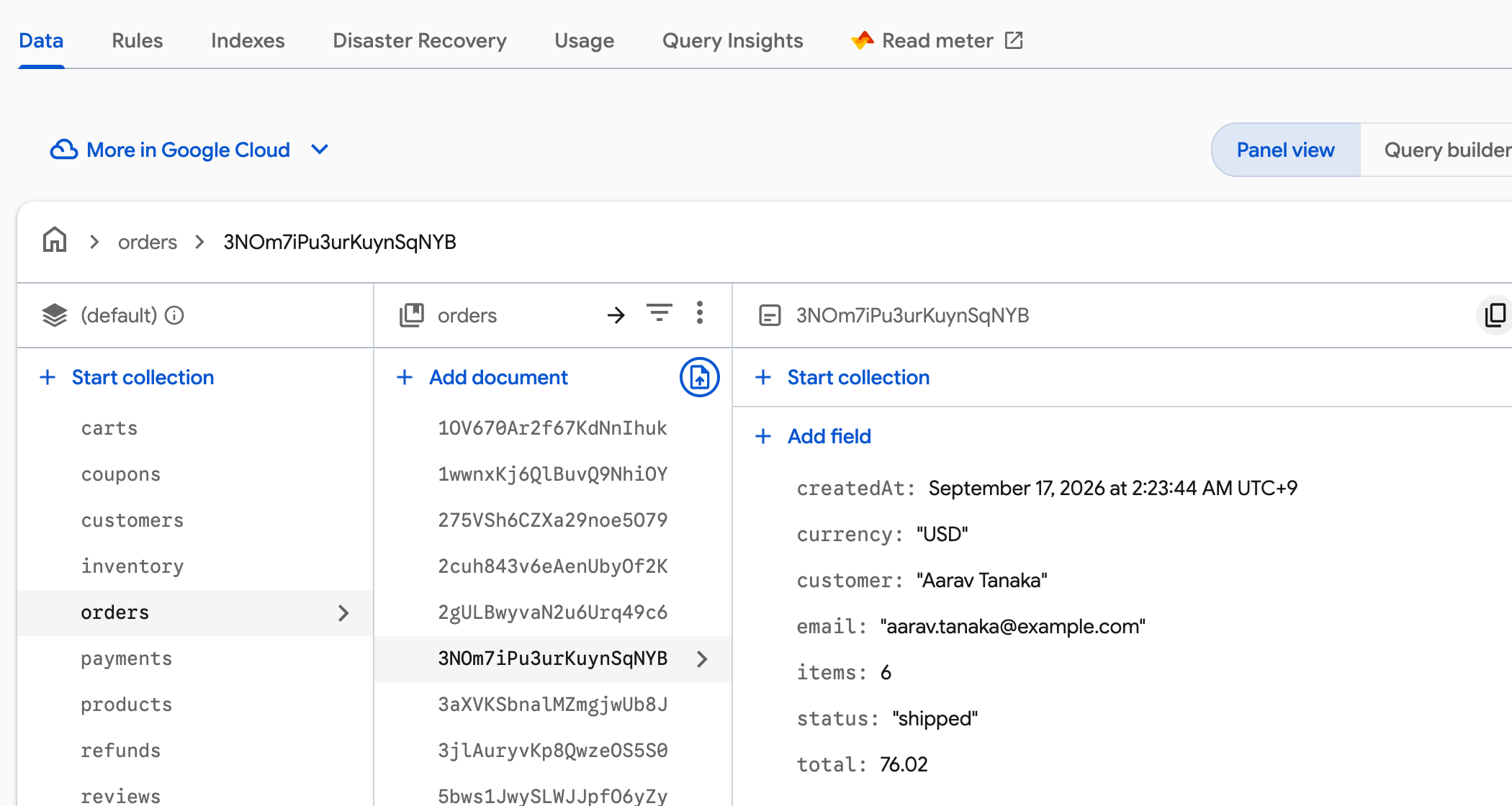
Firexport is a free Chrome extension that adds an import icon to Firestore’s panel view, at the right end of each collection’s Add document row. It writes with a Google account you connect, so there is no service account key or code to set up.
- Install Firexport from the Chrome Web Store.
- In the Firebase console, open Firestore Database > Data in Panel view and click the collection to import into.
- Click the import icon at the right end of the Add document row.
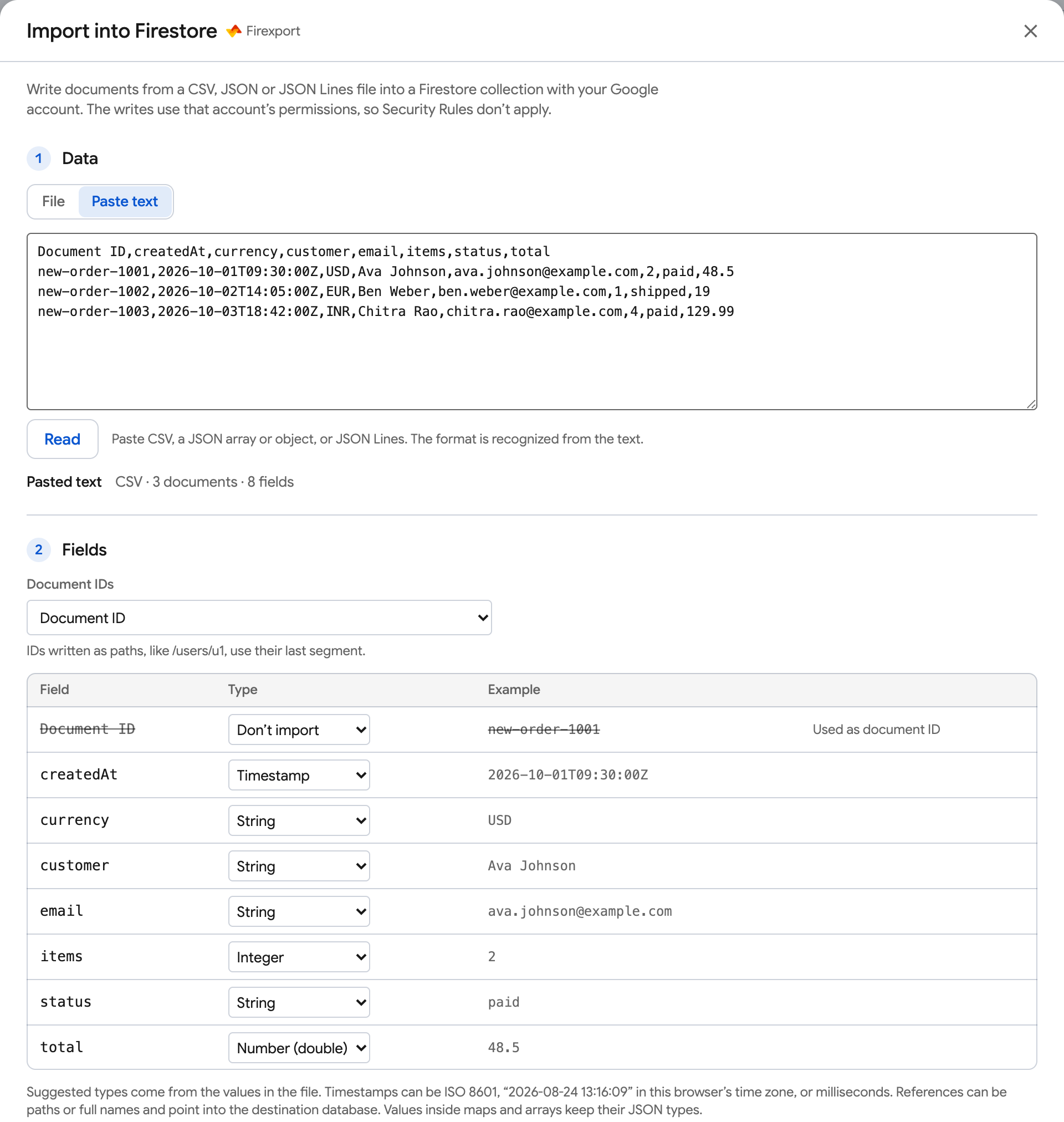
- Choose or drop a CSV, JSON or JSON Lines file, or switch to Paste text and click Read.
- Check each field’s type and where the document IDs come from, and choose what happens if a document already exists.
- The first time, the window asks you to Connect Google account: pick the account that can write to the project and allow access in Google’s window. Then click Import.
Field types and document IDs
- CSV cells are text, and JSON has no timestamps or references. So Firexport suggests a type for each field from its values: String, Integer, Number (double), Boolean, Timestamp, Reference, Geopoint or Bytes (base64), or Don’t import. It suggests one only when every value fits, and you can change any of them.
- Timestamps can be ISO 8601 (
2026-10-01T09:30:00Z),2026-10-01 09:30:00in your browser’s time zone, or milliseconds. References can be a path such asusers/u1. Values inside maps and arrays keep their JSON types, so nested data belongs in JSON: a CSV column is always one top-level field. - Document IDs come from a column you pick, from the keys of a JSON object, or are new random IDs. A
Document IDcolumn is picked for you, so a file Firexport exported imports as it is. IDs written as paths, like/users/u1, use their last segment. - A preview shows the first document as it will be written, with each value’s type. Rows that can’t be written, such as a value that doesn’t fit its type or a repeated ID, are listed and left out before anything is sent.
When a document already exists
Leave it, the default, only creates new documents: rows whose ID already exists fail and are listed. Replace it gives the document exactly the fields in the file. Merge into it writes the file’s fields, inside maps too, and keeps the document’s other fields. New random IDs never match an existing document.
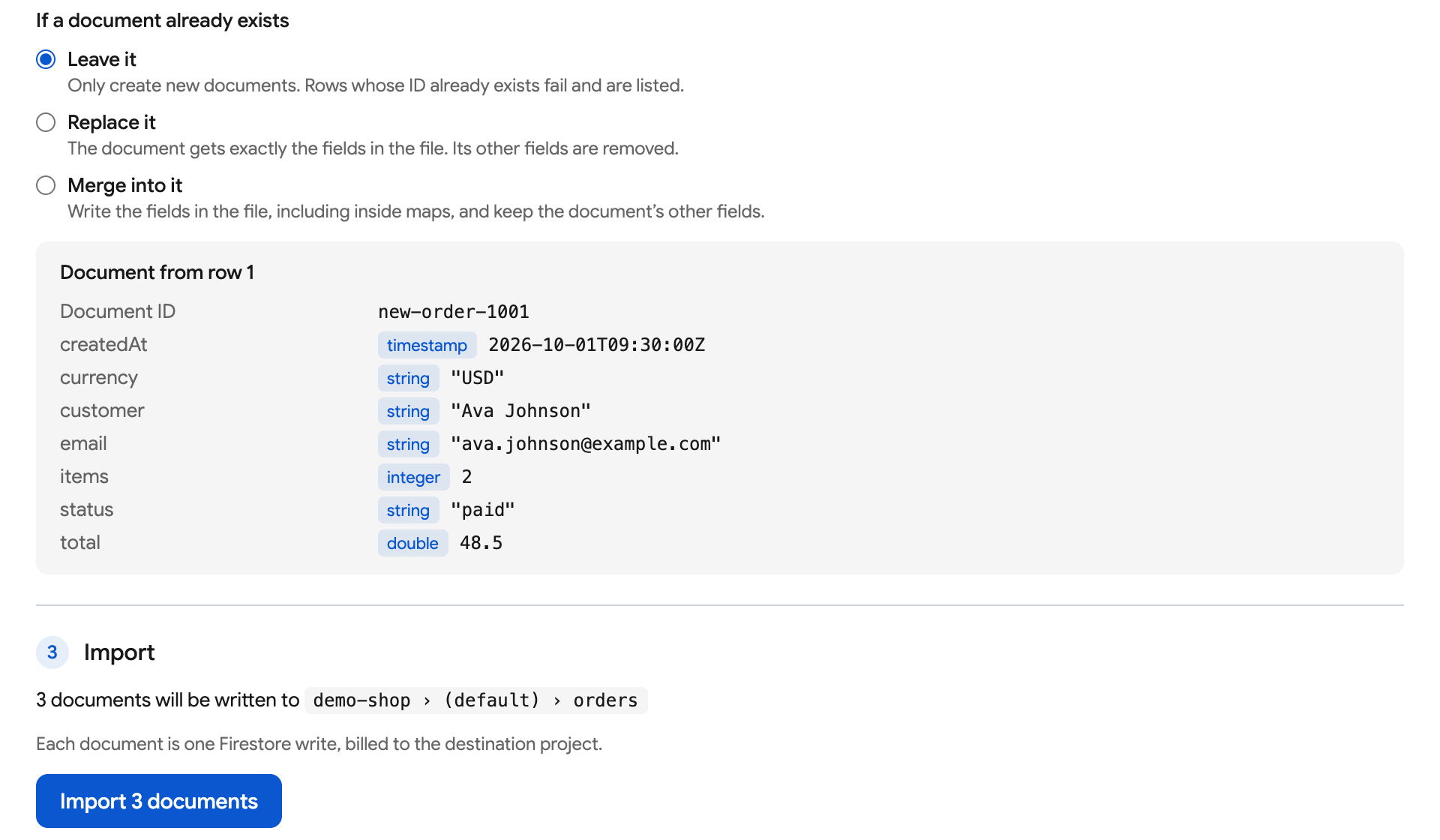
Each document is one Firestore write, billed to the project. Firexport sends up to 500 writes per second and retries the ones that failed for a temporary reason. When every row is written, the window closes with a short notice; if some failed, it lists them, offers a CSV report and can resume. The writes use the connected account’s permissions, so Security Rules don’t apply. Your file goes from your browser straight to Google, and never to us. Files and pasted text can be up to 100 MB.
Import a CSV or JSON file into Firestore from the console, without a script or a service account key.
 Add to Chrome — free
2. Import with an Admin SDK script
For a file over 100 MB, an import that runs on a schedule, or conversions of your own, a Node.js script with the Firebase Admin SDK writes the rows itself. The one below reads a CSV with a header row, a JSON array, a JSON object keyed by document ID, or JSON Lines, and writes one document per row. It needs an account that can write to Firestore: a project Owner or Editor, or the Cloud Datastore User role.
- Install the SDK and a CSV parser:
npm install firebase-admin csv-parse - Sign in for local credentials:
gcloud auth application-default login. On a server, pointGOOGLE_APPLICATION_CREDENTIALSat a service account key instead. - Save the script below as
import-to-firestore.mjs, replaceyour-project-id, setTYPESto your fields, and runnode import-to-firestore.mjs orders.csv orders.
// Usage: node import-to-firestore.mjs orders.csv orders   → one document per row in orders
// Reads .csv (with a header row), .json (an array, or an object keyed by document ID) and .jsonl.
import { readFileSync } from 'node:fs';
import { initializeApp } from 'firebase-admin/app';
import { getFirestore, Timestamp } from 'firebase-admin/firestore';
import { parse } from 'csv-parse/sync';

initializeApp({ projectId: 'your-project-id' });
const db = getFirestore();
const [file, collection] = process.argv.slice(2);
if (!file || !collection) throw new Error('Usage: node import-to-firestore.mjs <file> <collection>');

// The column or key that holds each document's ID. Rows without one get a random ID.
const ID_FIELD = 'Document ID';
// CSV cells are all text and JSON has no timestamps: list the fields to convert. The rest stay as they are.
const TYPES = { createdAt: 'timestamp', items: 'integer', total: 'number' };
// 'create' never touches an existing document (that row fails), 'set' replaces it, 'merge' adds to it.
const MODE = 'create';

const text = readFileSync(file, 'utf8');
const isCsv = file.endsWith('.csv');
let rows;
if (isCsv) {
  rows = parse(text, { columns: true, bom: true, skip_empty_lines: true });
} else if (file.endsWith('.jsonl')) {
  rows = text.split('\n').filter((line) => line.trim()).map((line) => JSON.parse(line));
} else {
  const json = JSON.parse(text);
  rows = Array.isArray(json) ? json : Object.entries(json).map(([id, data]) => ({ [ID_FIELD]: id, ...data }));
}

function convert(type, value) {
  if (type === 'timestamp') {
    const date = new Date(/^\d+$/.test(value) ? Number(value) : value); // ISO 8601 or milliseconds
    if (Number.isNaN(date.getTime())) throw new Error(`not a timestamp: ${value}`);
    return Timestamp.fromDate(date);
  }
  if (type === 'integer' || type === 'number') {
    const number = Number(value);
    if (value === '' || !Number.isFinite(number) || (type === 'integer' && !Number.isInteger(number))) {
      throw new Error(`not ${type === 'integer' ? 'an integer' : 'a number'}: ${value}`);
    }
    return number;
  }
  if (type === 'boolean') return value === true || value === 'true';
  return value;
}

// Convert every row before writing anything, so a bad value stops the import instead of half of it.
const docs = rows.map((row, index) => {
  const data = {};
  for (const [field, value] of Object.entries(row)) {
    if (field === ID_FIELD || (isCsv && value === '')) continue; // an empty CSV cell is a missing field
    try {
      data[field] = TYPES[field] ? convert(TYPES[field], value) : value;
    } catch (error) {
      throw new Error(`Row ${index + 1}, ${field}: ${error.message}`);
    }
  }
  const id = row[ID_FIELD] ? String(row[ID_FIELD]).split('/').pop() : undefined; // a path keeps its last part
  return { row: index + 1, ref: id ? db.collection(collection).doc(id) : db.collection(collection).doc(), data };
});

// BulkWriter sends the writes in batches, keeps under Firestore's rate limits and retries what can be retried.
const writer = db.bulkWriter();
const failures = [];
for (const { row, ref, data } of docs) {
  const write = MODE === 'create' ? writer.create(ref, data) : writer.set(ref, data, { merge: MODE === 'merge' });
  write.catch((error) => failures.push(`Row ${row} (${ref.id}): ${error.message}`));
}
await writer.close();
console.log(`Wrote ${docs.length - failures.length} of ${docs.length} documents to ${collection}`);
failures.forEach((failure) => console.log(failure));- CSV cells are text: the script converts only the fields listed in
TYPESand keeps the rest as strings. An empty cell becomes a missing field. JSON values keep their types, and maps and arrays are written as they are, except an array directly inside another array, which Firestore rejects. - Every row is converted before anything is written, so a bad value stops the script with its row and field instead of leaving half an import.
- With
MODEset to'create', existing documents are left alone and their rows are listed as failed.'set'replaces them and'merge'adds the file’s fields. Rows without an ID get a new random ID on every run, so running the script twice duplicates them. BulkWriterbatches the writes, starts at 500 per second and ramps up as Firestore’s 500/50/5 rule allows, and retries writes that failed for a temporary reason. The collection can be a subcollection path, such asusers/u1/orders. Like method 1, it bypasses Security Rules, and each document is one write.
3. Copy a whole database with gcloud managed import
gcloud firestore import, also on the Import/Export page of Firestore in the Google Cloud console, is Firestore’s managed import. It only reads what gcloud firestore export wrote to a Cloud Storage bucket, in Firestore’s own format, not CSV or JSON. Use it to restore a backup, or to copy collections from one project or database to another with their types intact.
# 1. Export the collection from the source project.
gcloud firestore export gs://YOUR_BUCKET/orders-export --collection-ids=orders --project=source-project-id

# 2. Import that export into the destination project.
gcloud firestore import gs://YOUR_BUCKET/orders-export --project=destination-project-id- Billing must be enabled (the Blaze plan). The import is one write per document.
- An import overwrites documents with the same ID and leaves the other documents in place. It doesn’t trigger Cloud Functions.
- Your account needs the Owner, Cloud Datastore Owner or Cloud Datastore Import Export Admin role. To import from another project’s bucket, the destination project’s Firestore service agent,
service-PROJECT_NUMBER@gcp-sa-firestore.iam.gserviceaccount.com, needs access to that bucket.
FAQ
Can the Firebase console import a CSV or JSON file into Firestore?
No. Firestore’s Data tab adds documents one at a time with Add document, and gcloud firestore import only reads Firestore’s own export files. Loading a CSV or JSON file takes an Admin SDK script, or a browser extension such as Firexport that adds an import to the console.
How do I import a JSON file into Firestore?
Use a JSON array of objects, one per document, or an object keyed by document ID. In Firexport, click the import icon on the collection’s Add document row and choose the file; maps and arrays keep their JSON types. With the Admin SDK, read the file and write each object with BulkWriter, as in the script above.
How do timestamps and references get imported?
CSV and JSON can’t carry Firestore types, so a timestamp in a file is just text until something converts it. Firexport converts it when you set the field’s type to Timestamp, Reference or Geopoint. In a script, convert it yourself, for example with Timestamp.fromDate(new Date(value)) or db.doc(path).
Do Security Rules apply to an import?
No. Firexport’s import, the Admin SDK and gcloud all write with the IAM permissions of an account, and Security Rules only apply to the client SDKs. Check the data, and the account, before you import.
How much does importing into Firestore cost?
Each imported document is one write, whichever method you use. On the free Spark plan that comes out of the 20,000 writes a day, and writes past it fail until the quota resets. On Blaze, writes past the free tier are billed at your database location’s rate.