
FirexportGuides
How to export Firebase Authentication users
The Users tab of Firebase Authentication lists every account in your project, but it can’t download them: its only menu holds the password hash parameters. There are three ways to get your users out as a file. Which one fits depends on what the file is for: a list to read, share or mail, or a move to another project.
Updated October 7, 2026. Firexport, the extension in method 1, is ours. Methods 2 and 3 don’t need it.
The short answer
| 1. Console + extension | 2. Firebase CLI | 3. Admin SDK script | |
|---|---|---|---|
| Setup | Install a Chrome extension | Node.js and the Firebase CLI | Node.js and Google Cloud credentials |
| Formats | CSV with a header row, or JSON | CSV without a header row, or JSON | CSV with a header row (or what your code writes) |
| Times | The console’s date (ISO 8601 with Advanced) | Epoch milliseconds | ISO 8601 |
| Custom claims | With Advanced | Included | Included |
| Password hashes | Never read | Included (Editor or Owner role) | Left out |
1. Export from the Firebase console with Firexport
In the Firebase console, Authentication > Users shows your users in a table, one page at a time, with nothing to download them with. Firexport is a free Chrome extension that adds an Export button to that table.
- Install Firexport from the Chrome Web Store.
- In the Firebase console, open Authentication and the Users tab.
- Click Export, right of Add user. Firexport goes through every page of the table and downloads one CSV file. For JSON, open the ⋮ menu next to the button and choose Export to JSON.
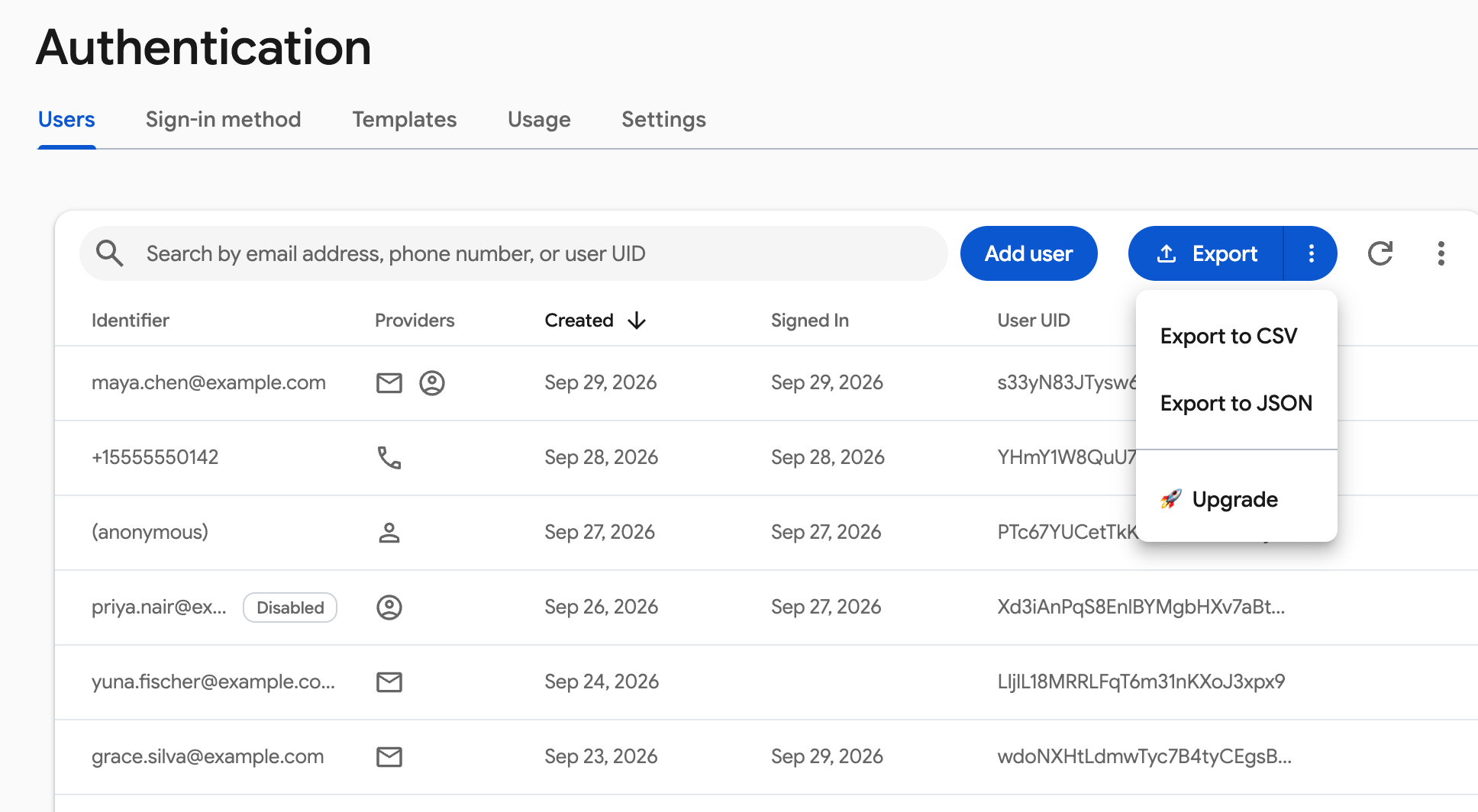
What ends up in the file:
- In the free version, one row per user with
uid,identifier,disabled,providers,creationTimeandlastSignInTime: the table as the console shows it. Dates are in the console’s format, without a time, and providers are names such as Email or Google. - Firexport Advanced, the paid plan, writes each user’s full record under the Admin SDK’s names:
email,emailVerified,displayName,phoneNumber,photoURL,providerData,customClaims,multiFactor, and the creation, sign-in and token times in ISO 8601 (UTC). - The column names are English whatever language the console is in, so every export has the same columns.
Password hashes are never read, and your users’ data stays in your browser: the file is built there, and it goes nowhere but your downloads. There is no service account key and no CLI to set up, because it works in the console session you’re already signed in to. It runs in Chrome and other Chromium-based browsers.
One user at a time
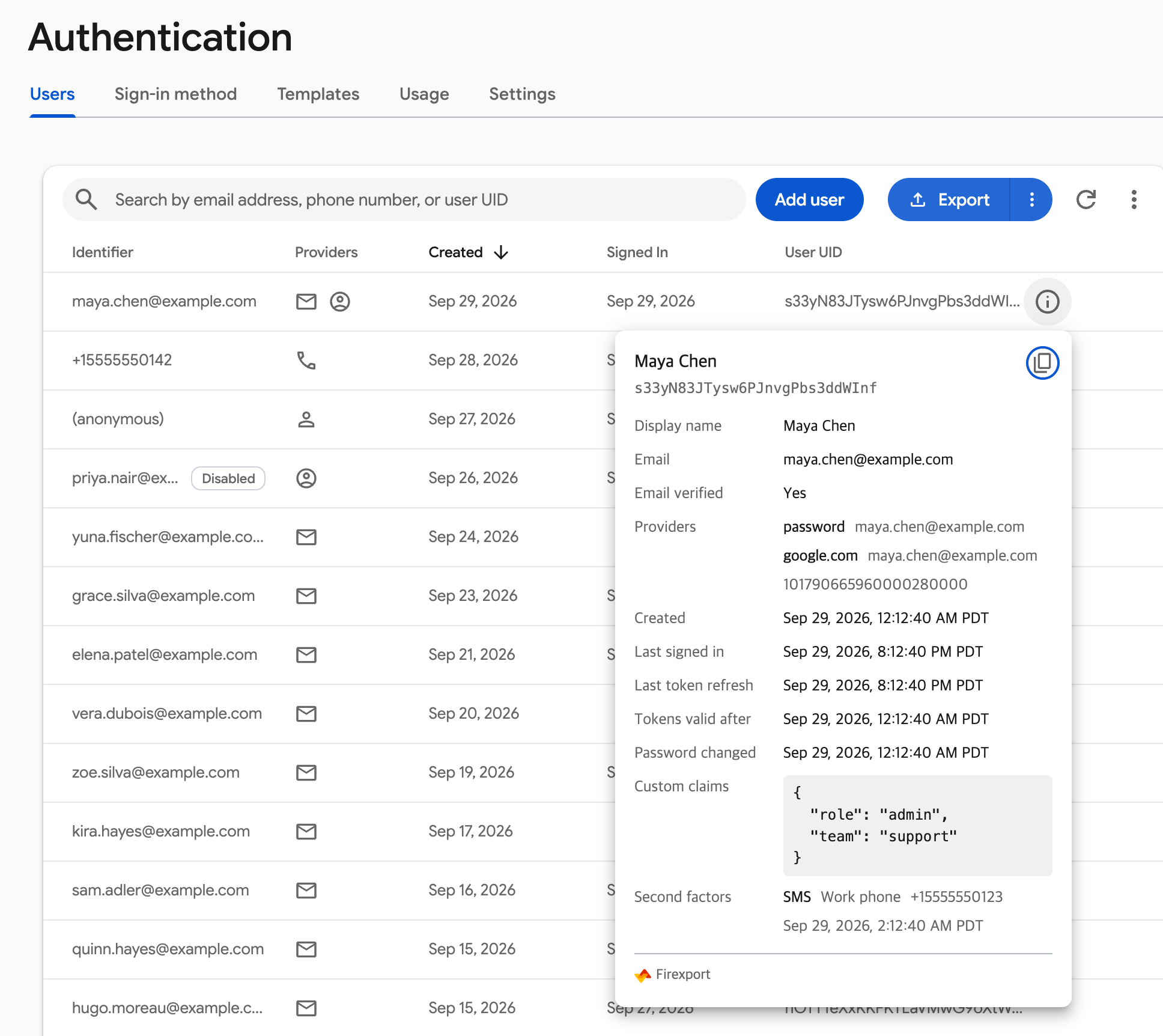
To check a single user, hover over their row. An info icon at the start of the row’s actions opens a card with the whole record: display name, email verification, providers, sign-in and token times, custom claims and second factors. The copy icon on the card puts the user on the clipboard as JSON. Both are free.
Export your Firebase users from the console, without the CLI or a service account key.
 Add to Chrome — free
2. Export with the Firebase CLI
The Firebase CLI’s auth:export command downloads every account in a project to one file. It is made for moving users to another project with auth:import, so it includes password hashes and salts. That also makes the file a credential: keep it out of shared drives and email. The hash and salt fields need an account with the Editor or Owner role on the project.
npm install -g firebase-tools
firebase login
firebase auth:export users.json --project your-project-id- The file name picks the format:
users.jsonorusers.csv. - The CSV has no header row. Its columns come in a fixed order: UID, email, email verified, password hash, salt, name and photo URL, four columns each for Google, Facebook, Twitter and GitHub, then creation time, last sign-in time, phone number and a few more. Google’s auth:export reference lists them. Times are epoch milliseconds.
- The JSON keeps the API’s own names:
localId,createdAt,lastSignedInAt,providerUserInfo, andcustomAttributesfor custom claims (a JSON string). - Only passwords hashed with Firebase’s scrypt are exported. Users imported with another algorithm who haven’t signed in since come out with empty hash and salt fields.
To move the users, import the file into the other project with the old project’s hash parameters (Authentication > Users > ⋮ > Password hash parameters). The users keep their UIDs and can sign in with the same password.
firebase auth:import users.json --project new-project-id \
  --hash-algo=SCRYPT --hash-key=BASE64_SIGNER_KEY --salt-separator=BASE64_SALT_SEPARATOR \
  --rounds=ROUNDS --mem-cost=MEM_COST
3. Export with an Admin SDK script
For columns of your own, or an export that runs on a schedule, a short Node.js script with the Firebase Admin SDK lists every user and writes a CSV with a header row. It needs an account that can read users: a project Owner or Editor, or the Firebase Authentication Viewer role.
- Install the SDK:
npm install firebase-admin - Sign in for local credentials:
gcloud auth application-default login. On a server, pointGOOGLE_APPLICATION_CREDENTIALSat a service account key instead. - Save the script below as
export-users.mjs, replaceyour-project-id, and runnode export-users.mjs.
// Usage: node export-users.mjs   → writes users.csv
import { writeFileSync } from 'node:fs';
import { initializeApp } from 'firebase-admin/app';
import { getAuth } from 'firebase-admin/auth';

initializeApp({ projectId: 'your-project-id' });
const auth = getAuth();

// listUsers returns at most 1,000 users per call, so follow the page token to the end.
const users = [];
let pageToken;
do {
  const page = await auth.listUsers(1000, pageToken);
  users.push(...page.users);
  pageToken = page.pageToken;
} while (pageToken);

// One row per user. Times become ISO 8601. Password hashes are left out: this is a user list, not a backup.
const iso = (time) => (time ? new Date(time).toISOString() : '');
const rows = users.map((user) => ({
  uid: user.uid,
  email: user.email,
  emailVerified: user.emailVerified,
  displayName: user.displayName,
  phoneNumber: user.phoneNumber,
  disabled: user.disabled,
  providers: user.providerData.map((provider) => provider.providerId).join(' '),
  creationTime: iso(user.metadata.creationTime),
  lastSignInTime: iso(user.metadata.lastSignInTime),
  customClaims: user.customClaims ? JSON.stringify(user.customClaims) : '',
}));

// Quote any cell with a comma, a quote or a line break.
function cell(value) {
  const text = value === undefined || value === null ? '' : String(value);
  return /[",\r\n]/.test(text) ? `"${text.replaceAll('"', '""')}"` : text;
}

const columns = ['uid', 'email', 'emailVerified', 'displayName', 'phoneNumber', 'disabled',
  'providers', 'creationTime', 'lastSignInTime', 'customClaims'];
const lines = [columns, ...rows.map((row) => columns.map((column) => row[column]))];
// The byte order mark at the start makes Excel read names in any language correctly.
writeFileSync('users.csv', '' + lines.map((line) => line.map(cell).join(',')).join('\r\n'));
console.log(`Wrote ${rows.length} users to users.csv`);- If a call fails because the API “requires a quota project”, run
gcloud auth application-default set-quota-project your-project-idand try again. listUsersreturns users in UID order, not by sign-up date. Sort the rows if you need that order.- The SDK returns password hashes only to an account with the
firebaseauth.configs.getHashConfigpermission, and the script leaves them out either way. To move users with their passwords, use method 2.
FAQ
Can the Firebase console export Authentication users?
No. The Users tab has a search box, Add user, a refresh button and a menu whose only item is Password hash parameters. Getting users into a file takes the Firebase CLI (firebase auth:export), the Admin SDK, or a browser extension that adds an Export button to that tab.
How do I get a list of all user emails from Firebase?
Export the users and keep the email column. In Firexport’s free export it is the identifier column, which shows what the console shows: the email, or the phone number for phone sign-in. In an Admin SDK script, collect user.email from listUsers.
Does the export include users’ passwords?
No method gives plain-text passwords, because Firebase never stores them. firebase auth:export includes the password hashes and salts, which firebase auth:import uses to move users with working passwords. Firexport never reads hashes, and the Admin SDK returns them only with an extra permission.
How do I move users to another Firebase project?
Run firebase auth:export users.json on the old project, then firebase auth:import users.json on the new one with --hash-algo=SCRYPT and the hash key, salt separator, rounds and memory cost from the old project’s Password hash parameters. A file without hashes, from Firexport or a script, would leave every password user to reset their password.
Can I open the export in Excel or Google Sheets?
Yes. Every method here writes CSV, which both open. Firexport’s CSV and the script’s start with a byte order mark, so Excel reads names in any language. If names come out garbled in a CSV without one, import it with Data > From Text/CSV and set File Origin to 65001: Unicode (UTF-8).