
FirexportGuides
How to export Firestore data to CSV
The Firebase console shows your Firestore data, but it has no button to download it as CSV. There are three practical ways to get a CSV file out of Firestore. Which one fits depends on how much data you have and how much setup you want to do.
Updated September 24, 2026. Firexport, the extension in method 1, is ours. Methods 2 and 3 don’t need it.
The short answer
- The results of one query, right now: run it in the console’s Query builder and export it with a browser extension. Method 1
- A repeatable export, or columns shaped your way: a short Admin SDK script. Method 2
- Every document in a large collection, or you already use BigQuery: managed export with gcloud, then BigQuery to CSV. Method 3
| 1. Console + extension | 2. Admin SDK script | 3. gcloud + BigQuery | |
|---|---|---|---|
| Setup | Install a Chrome extension | Node.js and Google Cloud credentials | Cloud Storage bucket and BigQuery dataset |
| Billing enabled | Not needed | Not needed | Required (Blaze plan) |
| Exports | One Query builder query, with its filters, order and limit | Whatever your code queries | Whole collections |
| Timestamps | As the console shows them (ISO 8601 with Advanced) | ISO 8601 | BigQuery TIMESTAMP |
| Maps and arrays | The console’s text. Long values can be cut off with “…” (full with Advanced) | JSON in one cell | JSON in one cell, after a flattening query |
1. Export from the Firebase console with Firexport
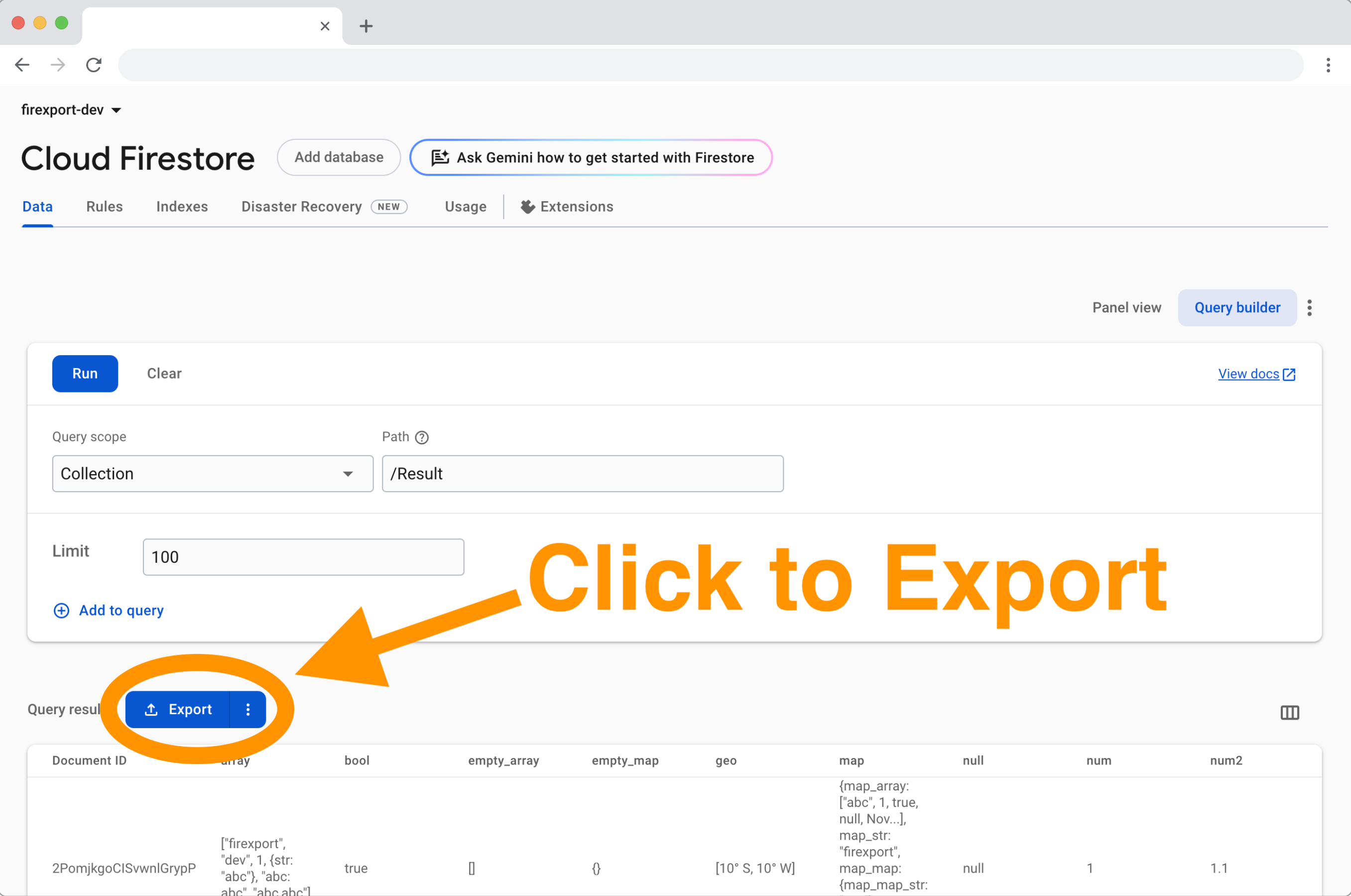
The Firestore page in the Firebase console has a Query builder that runs a query and shows the results in a table, but nothing to download them with. Firexport is a free Chrome extension that adds an Export button next to those results.
- Install Firexport from the Chrome Web Store.
- In the Firebase console, open Firestore Database and switch from Panel view to Query builder (top right of the Data tab).
- Pick the collection under Query scope and Path, add filters or a limit if you want, and click Run.
- Click Export above the results. Firexport goes through every page of the results and downloads one CSV file. For JSON, open the ⋮ menu next to the button and choose Export to JSON.
What ends up in the file:
- A Document ID column, then one column per field, as the console’s table shows them.
- Values as the console displays them. In the free version, timestamps are in the console’s display format (your browser’s language and time zone), references are shortened, and long maps or arrays can be cut off with “…”.
- Firexport Advanced, a one-time license, restores ISO 8601 timestamps, full reference paths, geopoints and untruncated maps and arrays from the data the console has already loaded.
There is no service account key and no billing to set up: it works in the console session you’re already signed in to, and the file is built in your browser. It exports one query at a time, so a subcollection comes along only if you query it as a collection group. It runs in Chrome and other Chromium-based browsers.
Export your next Firestore query from the console, without a script or a service account key.
 Add to Chrome — free
2. Export with an Admin SDK script
If you’d rather not use an extension, or the export has to run on a schedule, a short Node.js script with the Firebase Admin SDK does the job. It needs an account that can read Firestore: a project Owner or Editor, or the Cloud Datastore Viewer role.
- Install the SDK:
npm install firebase-admin - Sign in for local credentials:
gcloud auth application-default login. On a server, pointGOOGLE_APPLICATION_CREDENTIALSat a service account key instead. - Save the script below as
export-to-csv.mjs, replaceyour-project-id, and runnode export-to-csv.mjs users.
// Usage: node export-to-csv.mjs users   → writes users.csv
import { writeFileSync } from 'node:fs';
import { initializeApp } from 'firebase-admin/app';
import {
  getFirestore,
  FieldPath,
  Timestamp,
  GeoPoint,
  DocumentReference,
} from 'firebase-admin/firestore';

initializeApp({ projectId: 'your-project-id' });
const db = getFirestore();
const collection = process.argv[2];
if (!collection) throw new Error('Usage: node export-to-csv.mjs <collection>');

// Read the collection 1,000 documents at a time, so large collections don't time out.
const docs = [];
let last;
while (true) {
  let query = db.collection(collection).orderBy(FieldPath.documentId()).limit(1000);
  if (last) query = query.startAfter(last);
  const page = await query.get();
  if (page.empty) break;
  docs.push(...page.docs);
  last = page.docs[page.docs.length - 1];
}

// Firestore types become plain values: timestamps as ISO 8601, references as paths.
function plain(value) {
  if (value instanceof Timestamp) return value.toDate().toISOString();
  if (value instanceof DocumentReference) return value.path;
  if (value instanceof GeoPoint) return { latitude: value.latitude, longitude: value.longitude };
  if (value instanceof Uint8Array) return Buffer.from(value).toString('base64');
  if (Array.isArray(value)) return value.map(plain);
  if (value && typeof value === 'object') {
    return Object.fromEntries(Object.entries(value).map(([key, v]) => [key, plain(v)]));
  }
  return value;
}

// Maps and arrays go in one cell as JSON. Quote any cell with a comma, a quote or a line break.
function cell(value) {
  if (value === null || value === undefined) return '';
  const text = typeof value === 'object' ? JSON.stringify(value) : String(value);
  return /[",\r\n]/.test(text) ? `"${text.replaceAll('"', '""')}"` : text;
}

const rows = docs.map((doc) => ({ documentId: doc.id, ...plain(doc.data()) }));
// Documents in one collection can have different fields, so the columns are all of them.
const columns = [...new Set(rows.flatMap((row) => Object.keys(row)))];
const lines = [columns, ...rows.map((row) => columns.map((column) => row[column]))];
writeFileSync(`${collection}.csv`, lines.map((line) => line.map(cell).join(',')).join('\r\n'));
console.log(`Wrote ${rows.length} documents to ${collection}.csv`);- To export a subcollection across all parents, change
db.collectiontodb.collectionGroup. - The script holds every row in memory before it writes the file. For millions of documents, use method 3.
3. Export with gcloud and BigQuery
Firestore’s managed export writes a backup to Cloud Storage in Firestore’s own format, not CSV. BigQuery can load that format and write CSV. This is the route for large collections, but it needs billing enabled (the Blaze plan) and permission to run exports and write to the bucket. Google’s export and import docs list the roles.
# 1. Export one collection. BigQuery only loads exports made with --collection-ids.
gcloud firestore export gs://YOUR_BUCKET/users-export --collection-ids=users

# 2. Load it into a BigQuery dataset in the same location as the bucket.
bq --location=US mk --dataset firestore_export
bq load --source_format=DATASTORE_BACKUP firestore_export.users \
  gs://YOUR_BUCKET/users-export/all_namespaces/kind_users/all_namespaces_kind_users.export_metadata
BigQuery can’t write nested columns to CSV, and every table loaded from a Firestore export has one: __key__, which holds the document ID. So make a flat copy with a query first, turning maps and arrays into JSON text, and extract that.
# 3. Make a flat copy: maps and arrays become JSON text. List your own fields.
bq query --use_legacy_sql=false --destination_table=firestore_export.users_flat \
'SELECT __key__.name AS documentId, email, createdAt,
        TO_JSON_STRING(address) AS address, TO_JSON_STRING(tags) AS tags
 FROM firestore_export.users'

# 4. Write it to CSV and download it.
bq extract --destination_format=CSV firestore_export.users_flat gs://YOUR_BUCKET/users.csv
gcloud storage cp gs://YOUR_BUCKET/users.csv .- BigQuery writes at most 1 GB per file. For more, use a wildcard such as
gs://YOUR_BUCKET/users-*.csv. - The export is billed as one document read per document. Delete the export folder when you’re done so it stops using Cloud Storage.
FAQ
Can the Firebase console export Firestore data to CSV?
No. The Firestore page in the Firebase console has no download button. The managed export (the Import/Export page in the Google Cloud console, or gcloud firestore export) writes a backup in Firestore’s own format to Cloud Storage. It is meant for restoring data, not for opening in a spreadsheet.
Does exporting Firestore data cost money?
Every method reads each exported document at least once, and Firestore bills those as document reads. Within the daily free quota that costs nothing. The managed export also needs billing enabled on the project, and its files take up Cloud Storage until you delete them.
How do I export a subcollection?
Query it as a collection group. In the console, pick Collection group as the Query scope in the Query builder. In a script, use db.collectionGroup() instead of db.collection(). With gcloud, pass the subcollection’s ID to --collection-ids.
Can I export to JSON instead?
Yes. Firexport’s Export menu has Export to JSON. A script can write JSON.stringify(rows) instead of CSV. From BigQuery, bq extract --destination_format=NEWLINE_DELIMITED_JSON keeps maps and arrays nested.