
FirexportGuides
How to export Firestore data to Excel
Excel can’t read Firestore directly, so every route goes through a file: a CSV you open in Excel, or an .xlsx a script writes for you. Getting the file is the easy part. Opening it without Excel garbling text, dropping leading zeros or cramming everything into one column is where most people get stuck, and this guide covers that too.
Updated September 24, 2026. Firexport, the extension in method 1, is ours. Method 2 doesn’t need it.
The short answer
- The results of one query, right now: export a CSV from the console’s Query builder with a browser extension, then import it with Data > From Text/CSV. Method 1
- A whole collection, with numbers and dates already typed: an Admin SDK script that writes an .xlsx file. Method 2
- Google Sheets instead of Excel: import either file with File > Import. Google Sheets
1. Export a CSV from the Firebase console, then open it in Excel
The Firestore page in the Firebase console has a Query builder that runs a query and shows the results in a table, but nothing to download them with. Firexport is a free Chrome extension that adds an Export button next to those results.
- Install Firexport from the Chrome Web Store.
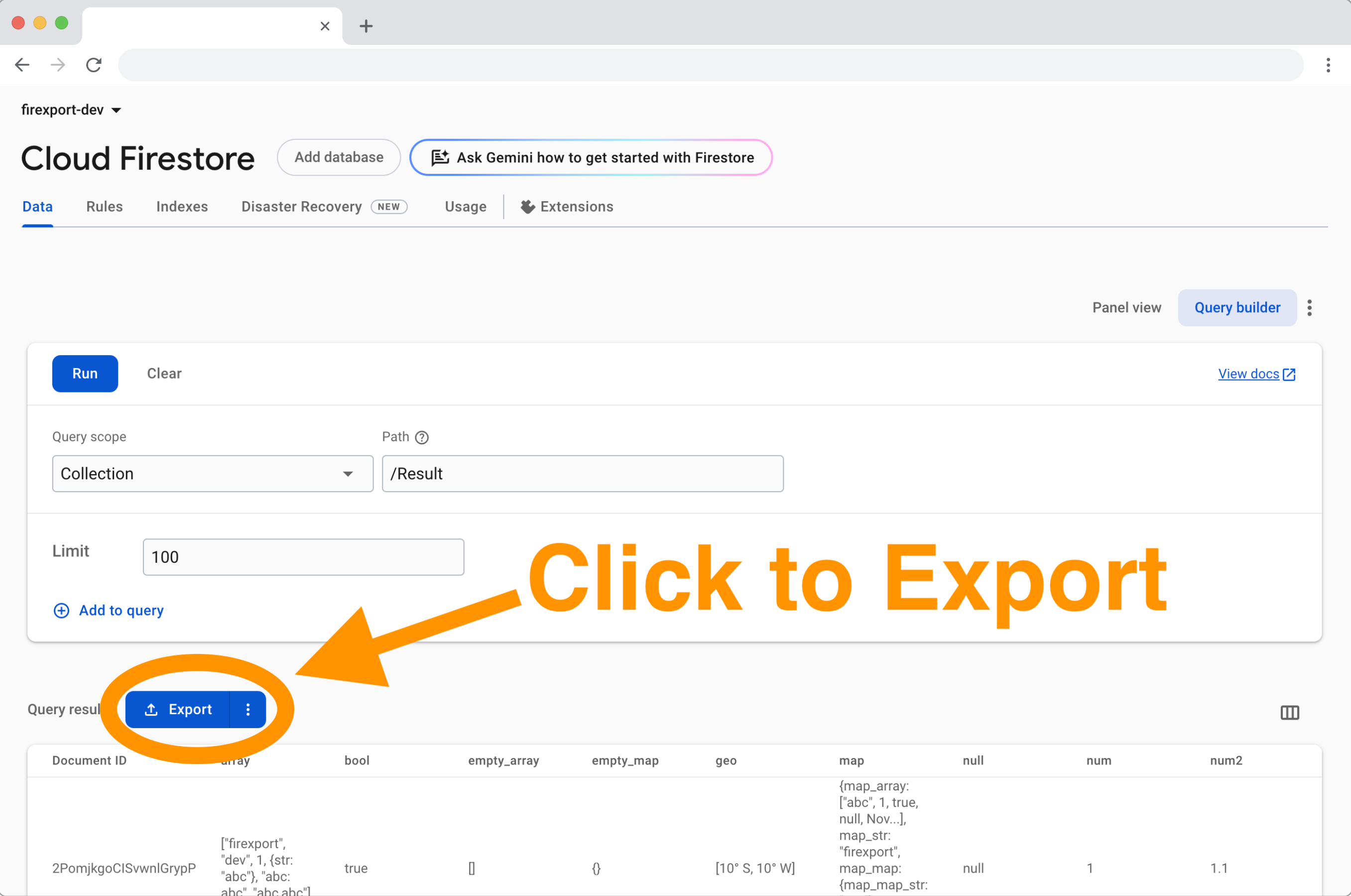
- In the Firebase console, open Firestore Database and switch from Panel view to Query builder (top right of the Data tab).
- Pick the collection under Query scope and Path, add filters or a limit if you want, and click Run.
- Click Export above the results. Firexport goes through every page of the results and downloads one CSV file.
- In Excel, go to Data > From Text/CSV (in the Get & Transform Data group), pick the file, check the preview, and click Load. The table below says which setting to change if the preview looks wrong.
Firexport’s CSV starts with a UTF-8 byte order mark, so Excel reads non-English text correctly even if you just double-click the file. Double-clicking still lets Excel guess the separator and the types, which is why the import dialog is the safer route. In the free version, timestamps come out as the console shows them (for example “August 24, 2026 at 1:16:09 PM UTC+9”), which Excel keeps as text. Firexport Advanced, a one-time license, writes ISO 8601 timestamps that Excel can turn into dates, and restores long maps and arrays the console cuts off with “…”.
Export your next Firestore query to a CSV that opens cleanly in Excel, straight from the console.
 Add to Chrome — free
When Excel mangles a CSV
These happen with any CSV, whichever way you exported it. All the fixes are settings in the From Text/CSV preview.
| What you see | Why | Fix |
|---|---|---|
| Accented or non-Latin text is garbled: “José Müller” shows as “José Müller” | The CSV is UTF-8 without a byte order mark (BOM), so Excel reads it in your system’s legacy encoding | Use a CSV that starts with a BOM (Firexport’s does), or set File Origin to 65001: Unicode (UTF-8) |
| Every row lands in column A | Your region uses a semicolon as the list separator (common in Europe), and the file uses commas | Set Delimiter to Comma |
| “00123” becomes 123, and a 20-digit ID becomes 1.23457E+19 | Excel turns anything that looks like a number into a number, and numbers keep only 15 digits | Set data type detection to Do not detect data types, so every column arrives as text |
| Timestamps sort as text, not as dates | Opened directly, Excel leaves ISO 8601 text such as 2026-08-24T04:16:09Z as text. With type detection off, every column is text | In Transform Data, change the column’s type to Date/Time/Timezone |
Maps and arrays arrive as text in one cell, because a cell holds one value. If you need their fields as columns, select the column in Transform Data and use Parse > JSON, then expand it. That needs valid JSON in every cell, which Firexport Advanced and the script below always write; the free version writes the console’s text when it can’t read a value back as JSON.
2. Write an .xlsx file with an Admin SDK script
A script can skip the CSV step and write an Excel workbook directly, with each cell already the right type: numbers as numbers, timestamps as dates, and IDs as text, so nothing loses a leading zero. It needs Node.js and an account that can read Firestore: a project Owner or Editor, or the Cloud Datastore Viewer role.
- Install the Admin SDK and ExcelJS:
npm install firebase-admin exceljs - Sign in for local credentials:
gcloud auth application-default login. On a server, pointGOOGLE_APPLICATION_CREDENTIALSat a service account key instead. - Save the script below as
export-to-excel.mjs, replaceyour-project-id, and runnode export-to-excel.mjs users.
// Usage: node export-to-excel.mjs users   → writes users.xlsx
import ExcelJS from 'exceljs';
import { initializeApp } from 'firebase-admin/app';
import {
  getFirestore,
  FieldPath,
  Timestamp,
  GeoPoint,
  DocumentReference,
} from 'firebase-admin/firestore';

initializeApp({ projectId: 'your-project-id' });
const db = getFirestore();
const collection = process.argv[2];
if (!collection) throw new Error('Usage: node export-to-excel.mjs <collection>');

// Read the collection 1,000 documents at a time, so large collections don't time out.
const docs = [];
let last;
while (true) {
  let query = db.collection(collection).orderBy(FieldPath.documentId()).limit(1000);
  if (last) query = query.startAfter(last);
  const page = await query.get();
  if (page.empty) break;
  docs.push(...page.docs);
  last = page.docs[page.docs.length - 1];
}

// Firestore types become plain values: timestamps as ISO 8601, references as paths.
function plain(value) {
  if (value instanceof Timestamp) return value.toDate().toISOString();
  if (value instanceof DocumentReference) return value.path;
  if (value instanceof GeoPoint) return { latitude: value.latitude, longitude: value.longitude };
  if (value instanceof Uint8Array) return Buffer.from(value).toString('base64');
  if (Array.isArray(value)) return value.map(plain);
  if (value && typeof value === 'object') {
    return Object.fromEntries(Object.entries(value).map(([key, v]) => [key, plain(v)]));
  }
  return value;
}

// A timestamp field becomes a real Excel date (in UTC). A cell holds one value, so maps and arrays
// go in as JSON text. Strings stay strings, so IDs like "00123" keep their leading zeros.
function cell(value) {
  if (value instanceof Timestamp) return value.toDate();
  const v = plain(value);
  return v !== null && typeof v === 'object' ? JSON.stringify(v) : v;
}

const rows = docs.map((doc) => ({ documentId: doc.id, ...doc.data() }));
// Documents in one collection can have different fields, so the columns are all of them.
const columns = [...new Set(rows.flatMap((row) => Object.keys(row)))];

const workbook = new ExcelJS.Workbook();
const sheet = workbook.addWorksheet(collection.slice(0, 31), { views: [{ state: 'frozen', ySplit: 1 }] });
sheet.columns = columns.map((key) => ({ header: key, key, width: 20 }));
sheet.getRow(1).font = { bold: true };
for (const row of rows) {
  const added = sheet.addRow(Object.fromEntries(columns.map((key) => [key, cell(row[key])])));
  added.eachCell((c) => {
    if (c.value instanceof Date) c.numFmt = 'yyyy-mm-dd hh:mm:ss';
  });
}
await workbook.xlsx.writeFile(`${collection}.xlsx`);
console.log(`Wrote ${rows.length} documents to ${collection}.xlsx`);- The workbook has one sheet named after the collection, with a bold, frozen header row: a
documentIdcolumn, then one column per field. - Timestamps are Excel dates shown as
yyyy-mm-dd hh:mm:ss, in UTC. Maps, arrays and geopoints are JSON text, and references are document paths. - An Excel sheet holds 1,048,576 rows, and the script keeps every row in memory until it writes the file. For bigger collections, use the gcloud and BigQuery route in the CSV guide.
Google Sheets
Google Sheets opens both files. Go to File > Import, upload the CSV or the .xlsx, and choose where it goes (a new spreadsheet, a new sheet, or the current one).
- For a CSV, set the separator to Comma (or leave it on Detect automatically).
- Uncheck Convert text to numbers, dates, and formulas if your data has IDs, phone numbers or codes with leading zeros. Otherwise Sheets turns “00123” into 123.
- A spreadsheet holds 10 million cells in total, across all its sheets.
FAQ
Can Excel connect to Firestore directly?
Not with a built-in connector: Excel’s Get Data has no Firestore source. You export a file first, either a CSV that Excel imports or an .xlsx a script writes, as this guide shows.
Why does Excel show garbled characters like “José” in my CSV?
The file is UTF-8 but has no byte order mark, so Excel reads it in your system’s legacy encoding. Use a CSV that starts with a BOM (Firexport’s does), or import it with Data > From Text/CSV and set File Origin to 65001: Unicode (UTF-8).
How many rows can Excel or Google Sheets hold?
An Excel worksheet holds 1,048,576 rows, and a cell holds at most 32,767 characters. A Google Sheets spreadsheet holds 10 million cells in total. For bigger collections, export to CSV with gcloud and BigQuery and work with the data there.
Does exporting Firestore data cost money?
Every method reads each exported document at least once, and Firestore bills those as document reads. Within the daily free quota that costs nothing.