
Firexport가이드
프로덕션 Firestore 데이터를 에뮬레이터로 가져오는 방법
Firestore 에뮬레이터는 빈 상태로 시작하고, 멈추면 모든 것을 잊습니다. Firebase 문서는 에뮬레이터 자신의 데이터를 저장하고 불러오는 방법만 다룰 뿐, 프로덕션 데이터를 넣는 방법은 다루지 않습니다. 방법은 세 가지입니다. 데이터를 한 번 불러와 폴더에 저장해 두면, 에뮬레이터는 매번 그 데이터로 시작합니다.
2026년 11월 17일 업데이트. 방법 1의 확장 프로그램 Firexport는 저희가 만든 것입니다. 방법 2와 3에는 필요 없습니다.
짧은 답
| 1. Firexport JSON + 시드 스크립트 | 2. Admin SDK 복사 | 3. 관리형 내보내기 + --import | |
|---|---|---|---|
| 얻는 것 | 쿼리 하나의 결과 | 지정한 컬렉션과 그 하위 컬렉션 | 데이터베이스 전체 |
| 필드 유형 | 숫자, 맵, 배열은 유지. 타임스탬프, 지리적 위치, 참조는 스크립트가 변환 | 모두 유지 | 모두 유지 |
| 결제 계정 | 필요 없음 | 필요 없음 | 필요(Blaze 요금제) |
| 과금되는 읽기 | 결과의 문서마다 약 1회 | 문서마다 2회(문서를 읽고, 하위 컬렉션을 나열) | 문서마다 1회, 그리고 버킷의 저장 용량 |
세 방법 모두 Firebase CLI와 Java 21 이상이 필요합니다. firebase-tools 15는 “firebase-tools no longer supports Java version before 21”을 출력하고 멈춥니다. 에뮬레이터에 쓰는 것은 무료지만, 프로덕션을 읽는 것은 비용이 듭니다.
1. Firexport로 JSON을 내보내고 에뮬레이터에 넣기
Firexport는 Firebase 콘솔의 Firestore 쿼리 빌더(Query builder)에 내보내기 버튼을 추가하는 무료 Chrome 확장 프로그램입니다. 프로덕션의 샘플을 JSON으로 내보낸 뒤, 짧은 Admin SDK 스크립트로 에뮬레이터에 씁니다. 결제 계정도, 서비스 계정 키도 필요 없습니다.
- Chrome 웹 스토어에서 Firexport를 설치합니다.
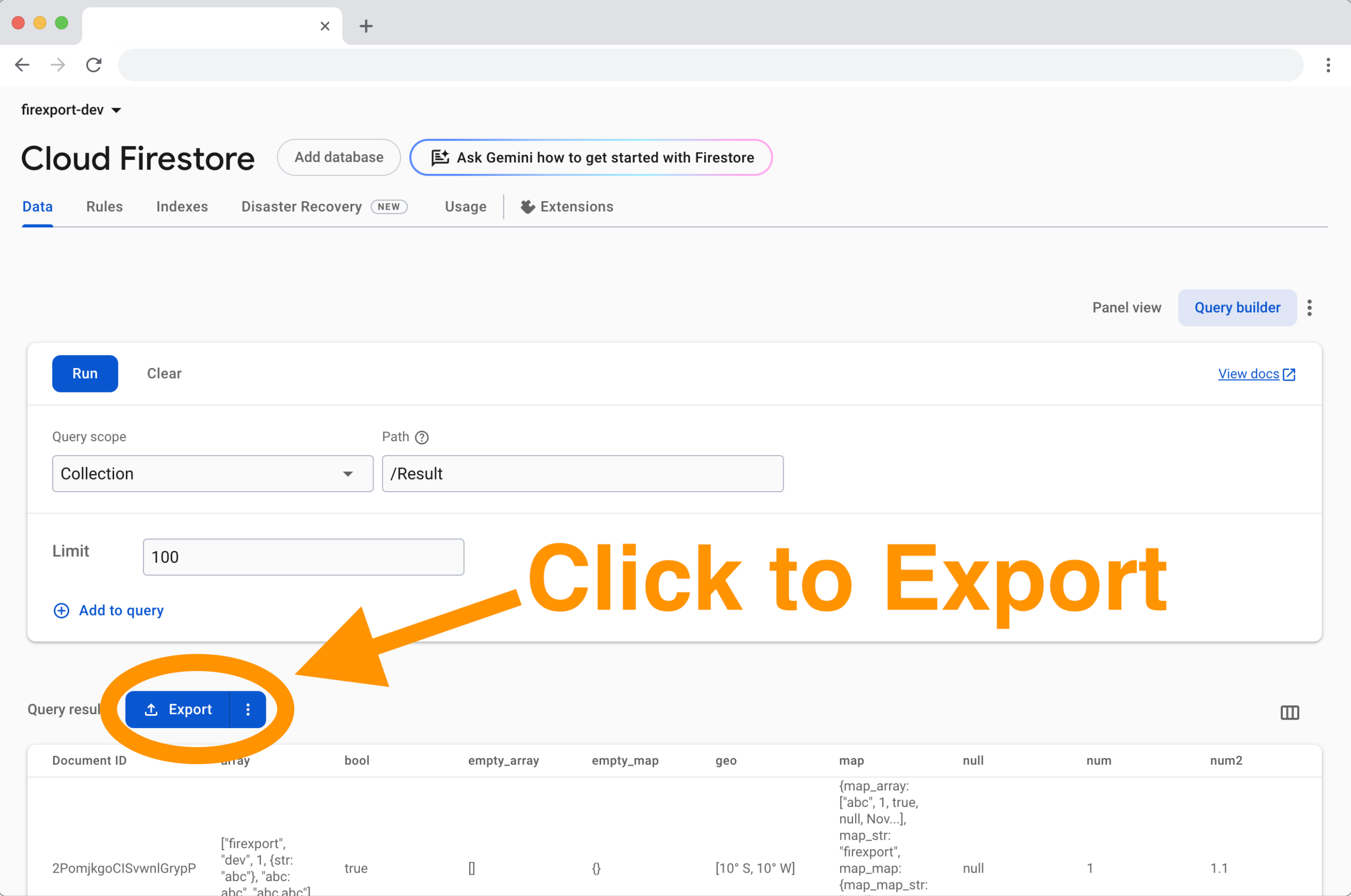
- Firebase 콘솔에서 Firestore Database를 열고 쿼리 빌더(Query builder)로 전환한 뒤, 컬렉션을 고르고 원하는 샘플에 맞게 제한이나 필터를 더해 실행(Run)을 클릭합니다.
- 내보내기 옆의 ⋮ 메뉴를 열어 JSON 내보내기를 고릅니다.
- 에뮬레이터 시작:
firebase emulators:start --only firestore --project your-project-id npm install firebase-admin을 실행하고, 아래 스크립트를seed-emulator.mjs로 저장한 뒤your-project-id를 에뮬레이터의 프로젝트 ID로,TYPES를 필드에 맞게 정하고node seed-emulator.mjs orders.json orders를 실행합니다.
// Usage: node seed-emulator.mjs orders.json orders   → writes a Firexport JSON export into the emulator's orders
// Start the emulator first (firebase emulators:start). This script never writes to production.
import { readFileSync } from 'node:fs';
import { initializeApp } from 'firebase-admin/app';
import { getFirestore, GeoPoint, Timestamp } from 'firebase-admin/firestore';

process.env.FIRESTORE_EMULATOR_HOST ??= '127.0.0.1:8080'; // the Admin SDK now talks to the emulator only
// The project ID the emulator runs with (firebase use, or --project). Another ID hides the data from the Emulator UI.
initializeApp({ projectId: 'your-project-id' });
const db = getFirestore();
const [file, collection] = process.argv.slice(2);
if (!file) throw new Error('Usage: node seed-emulator.mjs <file.json> [collection]');

// JSON has no timestamps, geopoints or references: list the fields that hold them. A dot reaches into a map.
const TYPES = { createdAt: 'timestamp', location: 'geopoint', owner: 'reference' };

function convert(type, value) {
  if (type === 'timestamp') {
    // ISO 8601 (Advanced), milliseconds, or the English console's text ("August 24, 2026 at 1:16:09 PM UTC+9")
    const date = new Date(typeof value === 'number' ? value : String(value).replace(' at ', ' '));
    if (Number.isNaN(date.getTime())) throw new Error(`not a timestamp: ${value}`);
    return Timestamp.fromDate(date);
  }
  if (type === 'geopoint') {
    if (typeof value === 'object') return new GeoPoint(value.latitude, value.longitude); // Advanced
    const m = String(value).match(/([\d.]+)° ([NS]), ([\d.]+)° ([EW])/); // the console's "[37.5665° N, 126.978° E]"
    if (!m) throw new Error(`not a geopoint: ${value}`);
    return new GeoPoint(m[1] * (m[2] === 'S' ? -1 : 1), m[3] * (m[4] === 'W' ? -1 : 1));
  }
  if (type === 'reference') {
    // "projects/p/databases/(default)/documents/users/u1" (Advanced) or "/users/u1" (the console's text)
    const path = String(value).replace(/^projects\/[^/]+\/databases\/[^/]+\/documents\//, '').replace(/^\//, '');
    if (path.includes('...')) throw new Error(`reference cut short by the console: ${value}`);
    return db.doc(path);
  }
  return value;
}

function toFirestore(data, prefix = '') {
  const out = {};
  for (const [key, value] of Object.entries(data)) {
    const path = prefix + key;
    if (TYPES[path] && value !== null) out[key] = convert(TYPES[path], value);
    else if (value && typeof value === 'object' && !Array.isArray(value)) out[key] = toFirestore(value, `${path}.`);
    else out[key] = value;
  }
  return out;
}

const rows = JSON.parse(readFileSync(file, 'utf8'));
// Convert every row before writing, so a bad value stops the script before anything is written.
const docs = rows.map(({ 'Document ID': id, 'Document Path': docPath, ...data }, index) => {
  // "Document Path" (Firexport's Include document path setting) also places subcollection documents.
  if (!docPath && !collection) throw new Error('No Document Path column: pass the collection to write to');
  try {
    return { ref: docPath ? db.doc(docPath) : db.collection(collection).doc(String(id)), data: toFirestore(data) };
  } catch (error) {
    throw new Error(`Row ${index + 1}: ${error.message}`);
  }
});

const writer = db.bulkWriter();
const failures = [];
for (const { ref, data } of docs) writer.set(ref, data).catch((error) => failures.push(`${ref.path}: ${error.message}`));
await writer.close();
console.log(`Wrote ${docs.length - failures.length} of ${docs.length} documents to the emulator`);
failures.forEach((failure) => console.log(failure));- 스크립트는 클라이언트를 만들기 전에
FIRESTORE_EMULATOR_HOST를 설정하므로 에뮬레이터에만 씁니다. 에뮬레이터에서도 Admin SDK의 쓰기는 보안 규칙을 거치지 않으며, 다시 실행하면 같은 ID를 덮어씁니다. - JSON은 숫자, 부울, null, 맵, 배열을 유지합니다. 타임스탬프, 지리적 위치, 참조는 텍스트로 들어오므로 그 필드를
TYPES에 적으세요(settings.updatedAt은 맵 안을 가리킵니다). 적지 않으면 문자열로 남습니다. - Firexport Advanced는 그 값을 온전히 씁니다. 타임스탬프는 ISO 8601, 참조는 전체 경로, 지리적 위치는 위도와 경도입니다. 무료 버전은 콘솔에 보이는 대로 씁니다. 스크립트는 그것도 읽지만, 타임스탬프는 영어 콘솔의 것만 초 단위까지 읽고, 콘솔이
...로 줄인 참조에서는 멈춥니다. - 하위 컬렉션은 컬렉션 그룹으로 실행하고, 메뉴의 설정에서 문서 경로 포함을 켭니다. 그러면 행마다
Document Path가 생기고 스크립트가 각 문서를 그 경로에 쓰므로, 컬렉션 인수는 빼도 됩니다.
프로덕션의 샘플을 콘솔에서 JSON으로 내보내고, 그 데이터로 에뮬레이터를 채워 보세요.
 Chrome에 추가 — 무료
2. Admin SDK 스크립트로 프로덕션에서 복사하기
이 스크립트는 지정한 컬렉션을 본인의 사용자 인증 정보로 프로덕션에서 읽고, 각 문서를 하위 컬렉션까지 에뮬레이터의 같은 경로에 씁니다. 값은 타임스탬프, 지리적 위치, 바이트, 참조까지 Firestore 유형을 그대로 유지합니다. 계정에 읽기 권한이 필요합니다. 소유자, 편집자 또는 Cloud Datastore 뷰어 역할입니다.
- SDK 설치:
npm install firebase-admin - 로컬 사용자 인증 정보로 로그인:
gcloud auth application-default login - 같은 프로젝트 ID로 에뮬레이터 시작:
firebase emulators:start --only firestore --project your-project-id - 스크립트를
copy-to-emulator.mjs로 저장하고PROJECT_ID를 정한 뒤,FIRESTORE_EMULATOR_HOST가 없는 셸에서node copy-to-emulator.mjs users orders를 실행합니다.
// Usage: node copy-to-emulator.mjs users orders   → copies those collections, subcollections included, into the emulator
// Reads production with your own credentials and writes only to the emulator. Start the emulator first.
import { initializeApp } from 'firebase-admin/app';
import { getFirestore } from 'firebase-admin/firestore';

// With this variable set, the "production" app below would read the emulator instead.
if (process.env.FIRESTORE_EMULATOR_HOST) throw new Error('Unset FIRESTORE_EMULATOR_HOST first');
const PROJECT_ID = 'your-project-id';
const LIMIT = 1000; // documents per collection, at each level: every document read is billed

const prod = getFirestore(initializeApp({ projectId: PROJECT_ID }, 'production'));
const local = getFirestore(initializeApp({ projectId: PROJECT_ID }, 'emulator'));
// Every write goes to this host. With ssl: false the SDK sends the emulator's admin token, so rules don't apply.
local.settings({ host: '127.0.0.1:8080', ssl: false });

const writer = local.bulkWriter();
let copied = 0;
async function copy(collectionRef) {
  const snapshot = await collectionRef.limit(LIMIT).get();
  for (const doc of snapshot.docs) {
    // The same path in the emulator. Timestamps, geopoints, bytes and references keep their types.
    writer.set(local.doc(doc.ref.path), doc.data()).then(() => copied++);
    for (const sub of await doc.ref.listCollections()) await copy(sub);
  }
}

const collections = process.argv.slice(2);
if (collections.length === 0) throw new Error('Usage: node copy-to-emulator.mjs <collection> [more collections]');
for (const id of collections) await copy(prod.collection(id));
await writer.close();
console.log(`Copied ${copied} documents into the emulator`);- 앱이 두 개 필요한 이유는
FIRESTORE_EMULATOR_HOST가 프로덕션용까지 모든 Admin SDK 클라이언트를 에뮬레이터로 보내기 때문입니다. 그래서 이 변수가 설정돼 있으면 실행을 거부하고, 두 번째 클라이언트만127.0.0.1:8080으로 향하게 합니다. LIMIT은 각 컬렉션의 상한이며 모든 단계에 적용됩니다. 문서 하나가 과금되는 읽기 1회이고, 그 하위 컬렉션을 나열하는 데 1회가 더 듭니다.- 문서 자체는 없고 하위 컬렉션만 있는 문서(콘솔이 ID를 기울임꼴로 보여 주는 문서)는 그 아래 있는 것과 함께 건너뜁니다.
- 실제 사용자의 이름과 이메일을 노트북에 남기지 않으려면 쓰기 전에 바꾸세요. 예를 들면
{ ...doc.data(), email: `${doc.id}@example.com` }처럼 씁니다.
3. 관리형 내보내기를 --import로 불러오기
에뮬레이터는 데이터를 Firestore 관리형 내보내기와 같은 형식으로 저장하고, --import는 관리형 내보내기도 읽습니다. 내려받아 그 폴더를 넘기면 됩니다. 결제 계정(Blaze 요금제), Cloud Storage 버킷, 그리고 소유자 역할 또는 Cloud Datastore 가져오기 내보내기 관리자와 스토리지 관리자 역할이 필요합니다.
# 1. Export the database to a bucket (Blaze plan, one read per document).
gcloud firestore export gs://YOUR_BUCKET/prod-export --project=your-project-id

# 2. Download it.
gcloud storage cp -r gs://YOUR_BUCKET/prod-export .

# 3. Start the emulator with it, and save to ./seed when you stop it.
firebase emulators:start --only firestore --import=./prod-export --export-on-exit=./seed.overall_export_metadata파일이 든 폴더를 넘기고, 둘은 같은 이름으로 둡니다(prod-export/prod-export.overall_export_metadata). CLI에는 “Detected non-emulator Firestore export”가 표시됩니다. 오래된 답변은 이를 위해firebase-export-metadata.json을 쓰지만, 그럴 필요는 없습니다.- 가져온 문서는 에뮬레이터가 실행 중인 프로젝트 ID 아래에 보이므로, 프로덕션의 ID와 같지 않아도 됩니다.
- 내보내기는 문서마다 읽기 1회로 과금됩니다. 끝나면 저장 용량 비용이 계속 들지 않도록 버킷에서 삭제하세요.
재시작 후에도 데이터 유지하기
데이터를 넣었으면 폴더에 저장하고, 그때부터는 그 폴더에서 시작합니다. 폴더에는 에뮬레이터 자신의 내보내기가 들어 있으므로 --import가 바로 읽습니다.
# Load ./seed at start and write the data back to it when you stop the emulator with Ctrl+C.
firebase emulators:start --import=./seed --export-on-exit

# Or save a running emulator's data at any time.
firebase emulators:export ./seed

# In CI: start the emulator with the data, run the tests, stop.
firebase emulators:exec --only firestore --import=./seed "npm test"--export-on-exit는 에뮬레이터가 정상적으로 종료될 때만 씁니다. 프로세스가 강제로 종료되면 시작한 뒤의 변경 사항이 사라집니다.- 폴더를 커밋해 팀과 CI가 같은 데이터를 쓰게 하거나, 실제 사용자의 데이터가 들어 있다면
.gitignore에 추가하세요. - 프로덕션이 Firestore Enterprise 에디션이라면
firebase.json의firestore아래에"edition": "enterprise"를 넣으세요. 에뮬레이터 로그에 어느 에디션으로 시작했는지 나옵니다. 15.12 같은 오래된 Firebase CLI는 이 설정을 무시합니다.
Emulator UI에 데이터가 보이지 않을 때
| 보이는 증상 | 이유 | 해결 |
|---|---|---|
| 스크립트는 문서를 썼다고 하는데 UI가 비어 있음 | 에뮬레이터는 쓰인 데이터를 프로젝트 ID별로 두는데, 스크립트가 다른 ID를 씀 | 에뮬레이터가 시작된 ID를 씀(firebase use 또는 --project) |
| 문서가 프로덕션에 들어감 | 클라이언트를 만들 때 FIRESTORE_EMULATOR_HOST가 설정돼 있지 않았음 | 시드 스크립트처럼 getFirestore() 전에 127.0.0.1:8080으로 설정 |
| 이름 있는 데이터베이스가 비어 보임 | UI는 기본 데이터베이스를 엶 | localhost:4000/firestore/DATABASE_ID/data로 이동 |
| 재시작하면 데이터가 사라짐 | 에뮬레이터는 데이터를 메모리에만 둠 | --import=./seed --export-on-exit로 시작 |
| 앱에 여전히 예전 데이터가 보임 | 클라이언트 SDK의 오프라인 캐시 | 에뮬레이터를 쓰는 동안 오프라인 지속성을 끔 |
FAQ
firebase emulators:start --import로 gcloud firestore export의 내보내기를 읽을 수 있나요?
네, 디스크로 내려받으면 됩니다. gcloud storage cp로 내보내기 폴더를 내려받아 --import에 넘기세요. Firebase CLI가 안에 있는 .overall_export_metadata 파일을 찾아 불러옵니다. 폴더와 그 파일은 내보내기의 이름 그대로 둡니다.
Blaze 요금제 없이 프로덕션 데이터를 에뮬레이터로 불러올 수 있나요?
네. 관리형 내보내기에는 결제 계정이 필요하지만, 다른 두 방법은 필요 없습니다. 프로덕션을 읽어 에뮬레이터에 쓰는 Admin SDK 스크립트, 또는 콘솔에서 내보낸 JSON(예를 들어 Firexport로)을 시드 스크립트가 에뮬레이터에 쓰는 방법입니다. 둘 다 프로덕션 문서를 읽으며, 이는 하루 무료 읽기 50,000회에서 차감됩니다.
Firestore 에뮬레이터 데이터를 재시작 후에도 유지하려면 어떻게 하나요?
firebase emulators:start --import=./seed --export-on-exit로 시작합니다. 시작할 때 폴더를 불러오고, Ctrl+C로 멈추면 데이터를 그 폴더에 다시 씁니다. 실행 중인 에뮬레이터는 firebase emulators:export ./seed로 언제든 저장할 수 있습니다.
에뮬레이터에 넣은 데이터가 왜 Emulator UI에 보이지 않나요?
대개 프로젝트 ID 때문입니다. 에뮬레이터는 SDK로 쓴 데이터를 프로젝트 ID별로 두고, UI는 에뮬레이터가 시작된 ID의 데이터를 보여 줍니다. Admin SDK를 같은 ID로 초기화하세요. 문서가 대신 프로덕션에 들어갔다면, 클라이언트를 만들기 전에 FIRESTORE_EMULATOR_HOST가 설정되지 않은 것입니다.
에뮬레이터에 데이터를 넣을 때 보안 규칙이 적용되나요?
아니요. Admin SDK는 관리자로 에뮬레이터에 연결하므로 어떤 규칙에서든 데이터를 넣을 수 있습니다. 클라이언트 SDK를 통한 앱의 요청은 여전히 firestore.rules로 검사됩니다.