
如何将生产环境 Firestore 数据导入模拟器
Firestore 模拟器启动时是空的,停止后会忘掉所有数据。Firebase 的文档讲了如何保存和加载模拟器自己的数据,却没有讲如何把生产环境数据放进去。有三种方法。把数据加载一次并保存到文件夹,之后模拟器每次启动都会带着这些数据。
更新于 2026年11月17日。 方法 1 中的扩展程序 Firexport 是我们开发的。方法 2 和 3 不需要它。
简短回答
| 1. Firexport JSON + 填充脚本 | 2. Admin SDK 复制 | 3. 托管导出 + --import | |
|---|---|---|---|
| 得到的数据 | 一个查询的结果 | 你指定的集合,连同子集合 | 整个数据库 |
| 字段类型 | 保留数字、映射和数组;时间戳、地理位置点和引用由脚本转换 | 全部保留 | 全部保留 |
| 需要启用结算 | 不需要 | 不需要 | 需要(Blaze 方案) |
| 计费的读取次数 | 结果中每个文档约一次 | 每个文档两次(读取文档本身,并列出它的子集合) | 每个文档一次,另加存储桶的存储费用 |
三种方法都需要 Firebase CLI 和 Java 21 或更高版本:firebase-tools 15 会提示“firebase-tools no longer supports Java version before 21”并停止。写入模拟器不花钱,读取生产环境则要花钱。
1. 用 Firexport 导出 JSON,再向模拟器填充数据
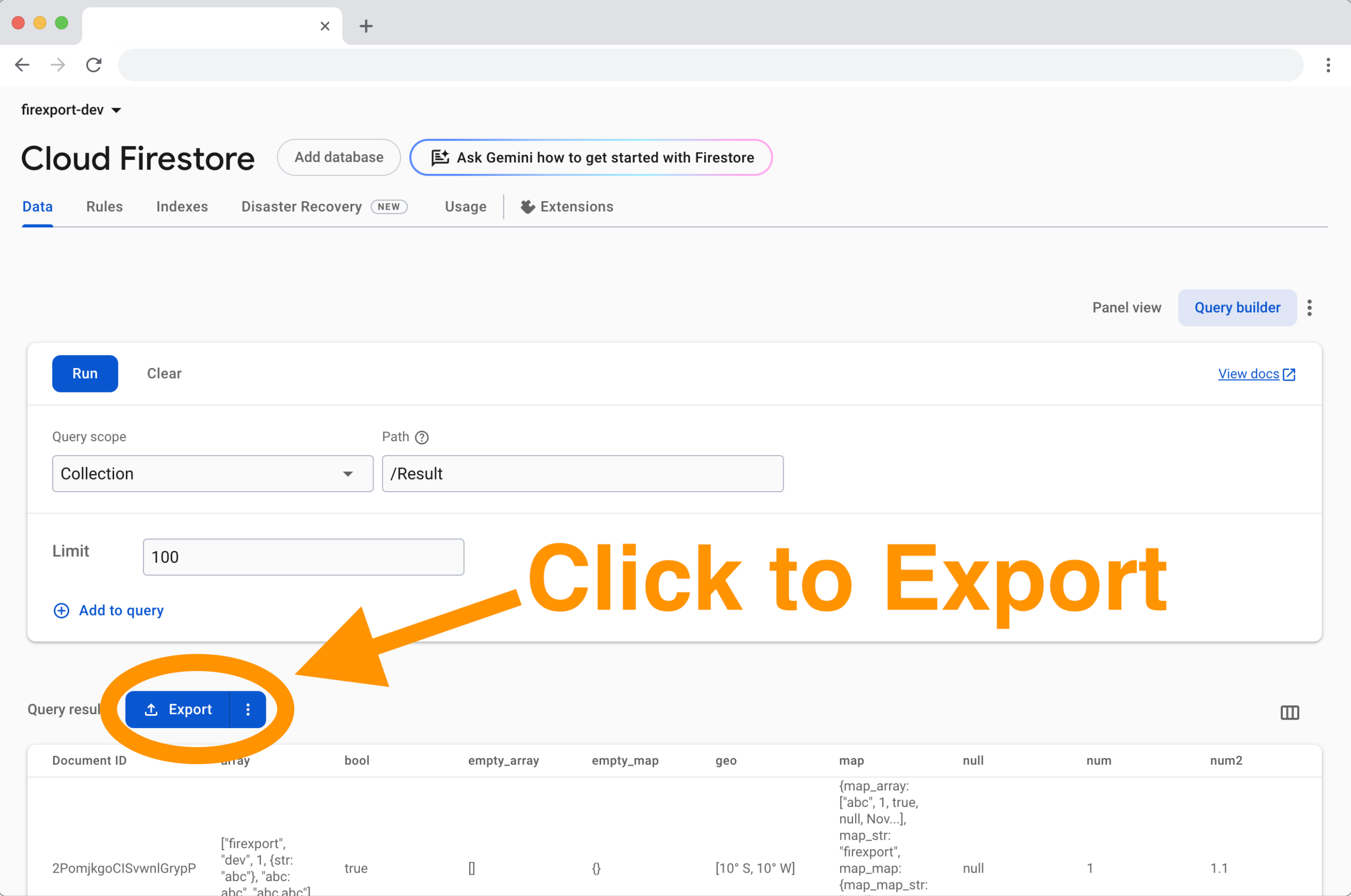
Firexport 是一款免费的 Chrome 扩展程序,会在 Firebase 控制台中 Firestore 的查询构建器(Query builder)里添加一个“导出”按钮。把生产环境的样本导出为 JSON,再由一段简短的 Admin SDK 脚本把它写入模拟器。全程不需要结算,也不需要服务账号密钥。
- 从 Chrome 应用商店安装 Firexport。
- 在 Firebase 控制台中打开 Firestore Database,切换到查询构建器(Query builder),选择集合,为想要的样本添加限制或过滤条件,然后点击运行(Run)。
- 打开导出旁的 ⋮ 菜单并选择导出为 JSON。
- 启动模拟器:
firebase emulators:start --only firestore --project your-project-id - 运行
npm install firebase-admin,把下面的脚本保存为seed-emulator.mjs,把your-project-id设为模拟器的项目 ID,把TYPES设为你的字段,然后运行node seed-emulator.mjs orders.json orders。
// Usage: node seed-emulator.mjs orders.json orders   → writes a Firexport JSON export into the emulator's orders
// Start the emulator first (firebase emulators:start). This script never writes to production.
import { readFileSync } from 'node:fs';
import { initializeApp } from 'firebase-admin/app';
import { getFirestore, GeoPoint, Timestamp } from 'firebase-admin/firestore';

process.env.FIRESTORE_EMULATOR_HOST ??= '127.0.0.1:8080'; // the Admin SDK now talks to the emulator only
// The project ID the emulator runs with (firebase use, or --project). Another ID hides the data from the Emulator UI.
initializeApp({ projectId: 'your-project-id' });
const db = getFirestore();
const [file, collection] = process.argv.slice(2);
if (!file) throw new Error('Usage: node seed-emulator.mjs <file.json> [collection]');

// JSON has no timestamps, geopoints or references: list the fields that hold them. A dot reaches into a map.
const TYPES = { createdAt: 'timestamp', location: 'geopoint', owner: 'reference' };

function convert(type, value) {
  if (type === 'timestamp') {
    // ISO 8601 (Advanced), milliseconds, or the English console's text ("August 24, 2026 at 1:16:09 PM UTC+9")
    const date = new Date(typeof value === 'number' ? value : String(value).replace(' at ', ' '));
    if (Number.isNaN(date.getTime())) throw new Error(`not a timestamp: ${value}`);
    return Timestamp.fromDate(date);
  }
  if (type === 'geopoint') {
    if (typeof value === 'object') return new GeoPoint(value.latitude, value.longitude); // Advanced
    const m = String(value).match(/([\d.]+)° ([NS]), ([\d.]+)° ([EW])/); // the console's "[37.5665° N, 126.978° E]"
    if (!m) throw new Error(`not a geopoint: ${value}`);
    return new GeoPoint(m[1] * (m[2] === 'S' ? -1 : 1), m[3] * (m[4] === 'W' ? -1 : 1));
  }
  if (type === 'reference') {
    // "projects/p/databases/(default)/documents/users/u1" (Advanced) or "/users/u1" (the console's text)
    const path = String(value).replace(/^projects\/[^/]+\/databases\/[^/]+\/documents\//, '').replace(/^\//, '');
    if (path.includes('...')) throw new Error(`reference cut short by the console: ${value}`);
    return db.doc(path);
  }
  return value;
}

function toFirestore(data, prefix = '') {
  const out = {};
  for (const [key, value] of Object.entries(data)) {
    const path = prefix + key;
    if (TYPES[path] && value !== null) out[key] = convert(TYPES[path], value);
    else if (value && typeof value === 'object' && !Array.isArray(value)) out[key] = toFirestore(value, `${path}.`);
    else out[key] = value;
  }
  return out;
}

const rows = JSON.parse(readFileSync(file, 'utf8'));
// Convert every row before writing, so a bad value stops the script before anything is written.
const docs = rows.map(({ 'Document ID': id, 'Document Path': docPath, ...data }, index) => {
  // "Document Path" (Firexport's Include document path setting) also places subcollection documents.
  if (!docPath && !collection) throw new Error('No Document Path column: pass the collection to write to');
  try {
    return { ref: docPath ? db.doc(docPath) : db.collection(collection).doc(String(id)), data: toFirestore(data) };
  } catch (error) {
    throw new Error(`Row ${index + 1}: ${error.message}`);
  }
});

const writer = db.bulkWriter();
const failures = [];
for (const { ref, data } of docs) writer.set(ref, data).catch((error) => failures.push(`${ref.path}: ${error.message}`));
await writer.close();
console.log(`Wrote ${docs.length - failures.length} of ${docs.length} documents to the emulator`);
failures.forEach((failure) => console.log(failure));- 脚本在创建客户端之前设置
FIRESTORE_EMULATOR_HOST,所以只会写入模拟器。在模拟器中,Admin SDK 的写入同样绕过安全规则,再次运行会覆盖 ID 相同的文档。 - JSON 会保留数字、布尔值、null、映射和数组。时间戳、地理位置点和引用会变成文本:把这些字段列在
TYPES中(settings.updatedAt可以深入映射内部),否则它们会保留为字符串。 - Firexport Advanced 会完整写出这些值:ISO 8601 时间戳、完整的引用路径,以及以纬度和经度表示的地理位置点。免费版写出的是控制台显示的内容。脚本也能读取这些内容,但时间戳只能来自英文控制台,且只精确到秒;遇到被控制台用
...截断的引用时,脚本会停止。 - 对于子集合,请以集合组的形式运行查询,并在菜单的设置中开启包含文档路径。这样每一行都会有
Document Path,脚本会把每个文档写到该路径,因此可以省略集合参数。
从控制台把生产环境的样本导出为 JSON,再用它向模拟器填充数据。
 添加到 Chrome — 免费
2. 用 Admin SDK 脚本从生产环境复制
这个脚本用你自己的凭据从生产环境读取你指定的集合,并把每个文档写到模拟器中的相同路径,子集合也包括在内。值保持各自的 Firestore 类型:时间戳、地理位置点、字节和引用。你的账号需要读取权限:Owner、Editor 或 Cloud Datastore Viewer。
- 安装 SDK:
npm install firebase-admin - 登录以获取本地凭据:
gcloud auth application-default login - 用相同的项目 ID 启动模拟器:
firebase emulators:start --only firestore --project your-project-id - 把脚本保存为
copy-to-emulator.mjs,设置PROJECT_ID,然后在没有设置FIRESTORE_EMULATOR_HOST的 shell 中运行node copy-to-emulator.mjs users orders。
// Usage: node copy-to-emulator.mjs users orders   → copies those collections, subcollections included, into the emulator
// Reads production with your own credentials and writes only to the emulator. Start the emulator first.
import { initializeApp } from 'firebase-admin/app';
import { getFirestore } from 'firebase-admin/firestore';

// With this variable set, the "production" app below would read the emulator instead.
if (process.env.FIRESTORE_EMULATOR_HOST) throw new Error('Unset FIRESTORE_EMULATOR_HOST first');
const PROJECT_ID = 'your-project-id';
const LIMIT = 1000; // documents per collection, at each level: every document read is billed

const prod = getFirestore(initializeApp({ projectId: PROJECT_ID }, 'production'));
const local = getFirestore(initializeApp({ projectId: PROJECT_ID }, 'emulator'));
// Every write goes to this host. With ssl: false the SDK sends the emulator's admin token, so rules don't apply.
local.settings({ host: '127.0.0.1:8080', ssl: false });

const writer = local.bulkWriter();
let copied = 0;
async function copy(collectionRef) {
  const snapshot = await collectionRef.limit(LIMIT).get();
  for (const doc of snapshot.docs) {
    // The same path in the emulator. Timestamps, geopoints, bytes and references keep their types.
    writer.set(local.doc(doc.ref.path), doc.data()).then(() => copied++);
    for (const sub of await doc.ref.listCollections()) await copy(sub);
  }
}

const collections = process.argv.slice(2);
if (collections.length === 0) throw new Error('Usage: node copy-to-emulator.mjs <collection> [more collections]');
for (const id of collections) await copy(prod.collection(id));
await writer.close();
console.log(`Copied ${copied} documents into the emulator`);- 它需要两个应用,因为
FIRESTORE_EMULATOR_HOST会把每个 Admin SDK 客户端都指向模拟器,连生产环境的也不例外。所以设置了该变量时它会拒绝运行,并且只把第二个客户端指向127.0.0.1:8080。 LIMIT限制每个集合的文档数,每一层都适用。每个文档计为一次计费读取,列出它的子集合再计一次。- 本身不存在但有子集合的文档(控制台把它的 ID 显示为斜体)会被跳过,它下面的内容也一样。
- 为了不让真实用户的姓名和电子邮件留在你的笔记本电脑上,请在写入之前修改它们,例如
{ ...doc.data(), email: `${doc.id}@example.com` }。
3. 用 --import 加载托管导出
模拟器保存数据的格式与 Firestore 的托管导出相同,--import 也能读取托管导出:下载下来,传入它的文件夹即可。它需要启用结算(Blaze 方案)、一个 Cloud Storage 存储桶,以及 Owner 角色,或者 Cloud Datastore Import Export Admin 加 Storage Admin 角色。
# 1. Export the database to a bucket (Blaze plan, one read per document).
gcloud firestore export gs://YOUR_BUCKET/prod-export --project=your-project-id

# 2. Download it.
gcloud storage cp -r gs://YOUR_BUCKET/prod-export .

# 3. Start the emulator with it, and save to ./seed when you stop it.
firebase emulators:start --only firestore --import=./prod-export --export-on-exit=./seed- 传入存放
.overall_export_metadata文件的文件夹,并让两者保持同名(prod-export/prod-export.overall_export_metadata)。CLI 会提示“Detected non-emulator Firestore export”。较早的答案会为此写一个firebase-export-metadata.json,其实不需要。 - 导入的文档会显示在模拟器运行时所用的项目 ID 下,所以它不必与生产环境的项目 ID 一致。
- 导出按每个文档一次读取计费。完成后把它从存储桶中删除,以免继续产生存储费用。
在多次运行之间保留数据
数据加载进去之后,把它保存到一个文件夹,之后都从这个文件夹启动。文件夹里存放的是模拟器自己的导出,所以 --import 可以直接读取。
# Load ./seed at start and write the data back to it when you stop the emulator with Ctrl+C.
firebase emulators:start --import=./seed --export-on-exit

# Or save a running emulator's data at any time.
firebase emulators:export ./seed

# In CI: start the emulator with the data, run the tests, stop.
firebase emulators:exec --only firestore --import=./seed "npm test"--export-on-exit只在模拟器正常关闭时写入。如果进程被强制终止,自启动以来的更改都会丢失。- 提交这个文件夹,让团队和 CI 使用相同的数据;如果其中有真实用户的数据,就把它加入
.gitignore。 - 如果生产环境使用 Firestore Enterprise 版,请在
firebase.json的firestore下设置"edition": "enterprise"。模拟器的日志会显示它以哪个版本启动;较旧的 Firebase CLI(例如 15.12)会忽略这项设置。
Emulator UI 不显示数据时
| 你看到的现象 | 原因 | 修复 |
|---|---|---|
| 脚本说已写入文档,但 UI 中是空的 | 模拟器按项目 ID 分别保存写入的数据,而脚本用了另一个 ID | 使用模拟器启动时的 ID(firebase use 或 --project) |
| 文档写到了生产环境 | 创建客户端时没有设置 FIRESTORE_EMULATOR_HOST | 像填充脚本那样,在 getFirestore() 之前把它设为 127.0.0.1:8080 |
| 命名数据库看起来是空的 | UI 打开的是默认数据库 | 前往 localhost:4000/firestore/DATABASE_ID/data |
| 重启后数据不见了 | 模拟器只在内存中保存数据 | 用 --import=./seed --export-on-exit 启动它 |
| 你的应用仍显示旧数据 | 客户端 SDK 的离线缓存 | 使用模拟器时关闭持久化 |
常见问题
firebase emulators:start --import 能读取 gcloud firestore export 的导出吗?
可以,只要它在你的磁盘上。用 gcloud storage cp 下载导出文件夹并把它传给 --import:Firebase CLI 会找到其中的 .overall_export_metadata 文件并加载它。文件夹和该文件都要保持导出的名称。
没有 Blaze 方案,能把生产环境数据加载到模拟器吗?
可以。托管导出需要结算,但另外两种方法不需要:从生产环境读取并写入模拟器的 Admin SDK 脚本,或者从控制台导出的 JSON(例如用 Firexport),再由填充脚本写入模拟器。两者都会读取生产环境的文档,计入每天 50,000 次免费读取的配额。
如何在重启之间保留 Firestore 模拟器的数据?
用 firebase emulators:start --import=./seed --export-on-exit 启动它。它会在启动时加载该文件夹,并在你用 Ctrl+C 停止时把数据写回去。firebase emulators:export ./seed 可以随时保存正在运行的模拟器的数据。
为什么 Emulator UI 不显示我填充的数据?
通常是项目 ID 的问题。模拟器按项目 ID 分别保存通过 SDK 写入的数据,而 UI 显示的是模拟器启动时所用的那个。请用同一个 ID 初始化 Admin SDK。如果文档反而写到了生产环境,说明创建客户端之前没有设置 FIRESTORE_EMULATOR_HOST。
向模拟器填充数据时,安全规则会生效吗?
不会。Admin SDK 以管理员身份连接模拟器,所以无论规则如何,都能填充数据。你的应用通过客户端 SDK 发出的请求仍会按 firestore.rules 检查。