
如何將正式環境 Firestore 資料匯入模擬器
Firestore 模擬器啟動時是空的,停止後就會忘掉所有資料。Firebase 的說明文件介紹了如何儲存和載入模擬器自己的資料,卻沒有介紹如何把正式環境資料放進去。有三種方法。只要載入一次資料並存到資料夾,模擬器之後每次啟動都會帶著這些資料。
更新於 2026年11月17日。 方法 1 中的擴充功能 Firexport 是我們開發的。方法 2 和 3 不需要它。
簡短回答
| 1. Firexport JSON + 填充指令碼 | 2. Admin SDK 複製 | 3. 代管匯出 + --import | |
|---|---|---|---|
| 取得的資料 | 一個查詢的結果 | 你指定的集合,含子集合 | 整個資料庫 |
| 欄位類型 | 保留數字、對應和陣列;時間戳記、地理位置點和參照由指令碼轉換 | 全部保留 | 全部保留 |
| 需要啟用計費 | 不需要 | 不需要 | 需要(Blaze 方案) |
| 計費的讀取次數 | 結果中每份文件約一次 | 每份文件兩次(讀取文件本身,並列出它的子集合) | 每份文件一次,另加值區的儲存費用 |
三種方法都需要 Firebase CLI 和 Java 21 以上版本:firebase-tools 15 會顯示「firebase-tools no longer supports Java version before 21」並停止。寫入模擬器不花錢,讀取正式環境則要付費。
1. 用 Firexport 匯出 JSON,再向模擬器填充資料
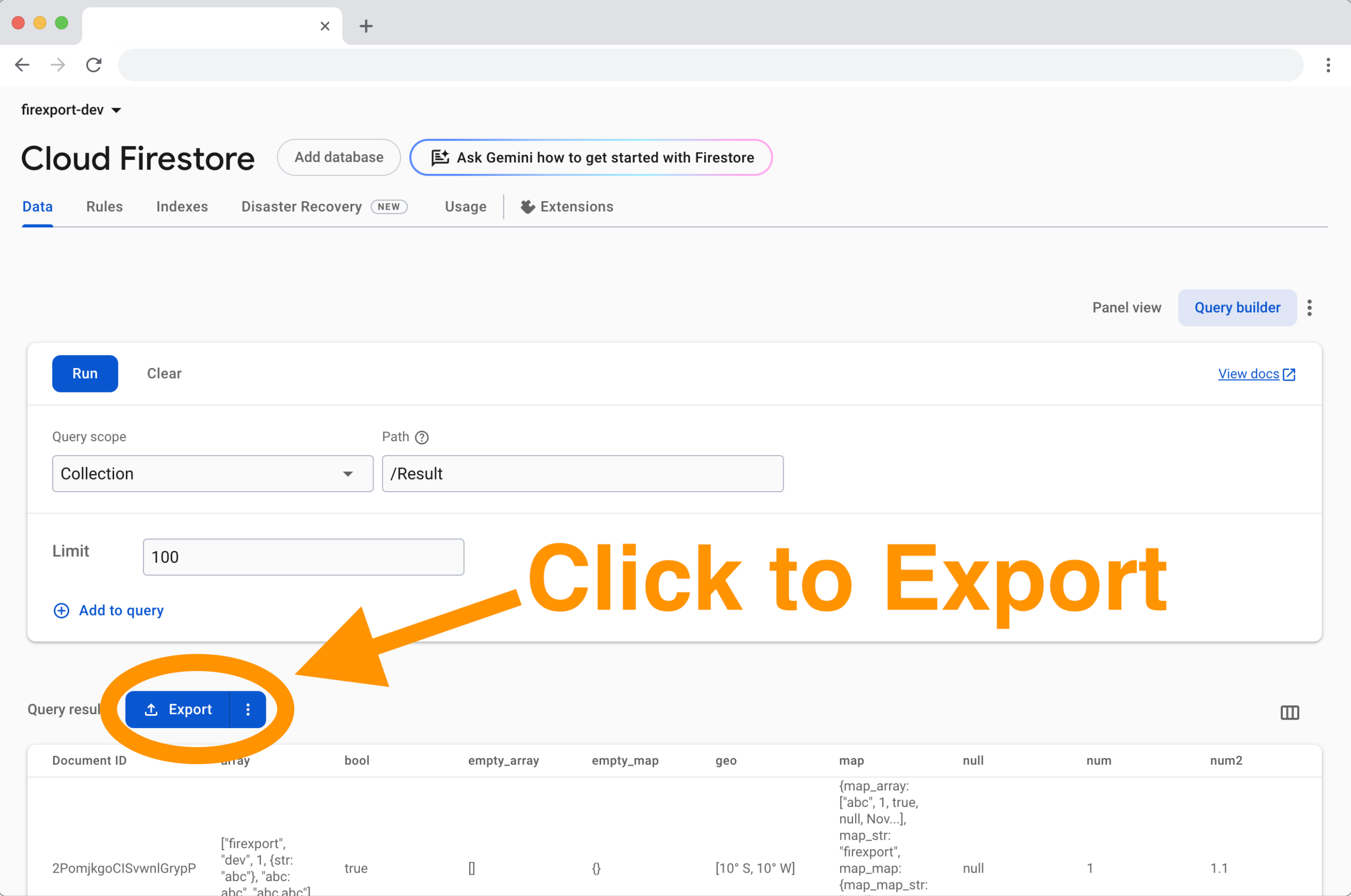
Firexport 是一款免費的 Chrome 擴充功能,會在 Firebase 控制台中 Firestore 的查詢建構工具(Query builder)加入一個「匯出」按鈕。把正式環境的樣本匯出成 JSON,再由一段簡短的 Admin SDK 指令碼寫入模擬器。全程不需要計費,也不需要服務帳戶金鑰。
- 從 Chrome 線上應用程式商店安裝 Firexport。
- 在 Firebase 控制台開啟 Firestore Database,切換到查詢建構工具(Query builder),選擇集合,為想要的樣本加入限制或篩選條件,然後按一下執行(Run)。
- 開啟匯出旁的 ⋮ 選單並選擇匯出為 JSON。
- 啟動模擬器:
firebase emulators:start --only firestore --project your-project-id - 執行
npm install firebase-admin,把下面的指令碼存成seed-emulator.mjs,把your-project-id設為模擬器的專案 ID、把TYPES設為你的欄位,然後執行node seed-emulator.mjs orders.json orders。
// Usage: node seed-emulator.mjs orders.json orders   → writes a Firexport JSON export into the emulator's orders
// Start the emulator first (firebase emulators:start). This script never writes to production.
import { readFileSync } from 'node:fs';
import { initializeApp } from 'firebase-admin/app';
import { getFirestore, GeoPoint, Timestamp } from 'firebase-admin/firestore';

process.env.FIRESTORE_EMULATOR_HOST ??= '127.0.0.1:8080'; // the Admin SDK now talks to the emulator only
// The project ID the emulator runs with (firebase use, or --project). Another ID hides the data from the Emulator UI.
initializeApp({ projectId: 'your-project-id' });
const db = getFirestore();
const [file, collection] = process.argv.slice(2);
if (!file) throw new Error('Usage: node seed-emulator.mjs <file.json> [collection]');

// JSON has no timestamps, geopoints or references: list the fields that hold them. A dot reaches into a map.
const TYPES = { createdAt: 'timestamp', location: 'geopoint', owner: 'reference' };

function convert(type, value) {
  if (type === 'timestamp') {
    // ISO 8601 (Advanced), milliseconds, or the English console's text ("August 24, 2026 at 1:16:09 PM UTC+9")
    const date = new Date(typeof value === 'number' ? value : String(value).replace(' at ', ' '));
    if (Number.isNaN(date.getTime())) throw new Error(`not a timestamp: ${value}`);
    return Timestamp.fromDate(date);
  }
  if (type === 'geopoint') {
    if (typeof value === 'object') return new GeoPoint(value.latitude, value.longitude); // Advanced
    const m = String(value).match(/([\d.]+)° ([NS]), ([\d.]+)° ([EW])/); // the console's "[37.5665° N, 126.978° E]"
    if (!m) throw new Error(`not a geopoint: ${value}`);
    return new GeoPoint(m[1] * (m[2] === 'S' ? -1 : 1), m[3] * (m[4] === 'W' ? -1 : 1));
  }
  if (type === 'reference') {
    // "projects/p/databases/(default)/documents/users/u1" (Advanced) or "/users/u1" (the console's text)
    const path = String(value).replace(/^projects\/[^/]+\/databases\/[^/]+\/documents\//, '').replace(/^\//, '');
    if (path.includes('...')) throw new Error(`reference cut short by the console: ${value}`);
    return db.doc(path);
  }
  return value;
}

function toFirestore(data, prefix = '') {
  const out = {};
  for (const [key, value] of Object.entries(data)) {
    const path = prefix + key;
    if (TYPES[path] && value !== null) out[key] = convert(TYPES[path], value);
    else if (value && typeof value === 'object' && !Array.isArray(value)) out[key] = toFirestore(value, `${path}.`);
    else out[key] = value;
  }
  return out;
}

const rows = JSON.parse(readFileSync(file, 'utf8'));
// Convert every row before writing, so a bad value stops the script before anything is written.
const docs = rows.map(({ 'Document ID': id, 'Document Path': docPath, ...data }, index) => {
  // "Document Path" (Firexport's Include document path setting) also places subcollection documents.
  if (!docPath && !collection) throw new Error('No Document Path column: pass the collection to write to');
  try {
    return { ref: docPath ? db.doc(docPath) : db.collection(collection).doc(String(id)), data: toFirestore(data) };
  } catch (error) {
    throw new Error(`Row ${index + 1}: ${error.message}`);
  }
});

const writer = db.bulkWriter();
const failures = [];
for (const { ref, data } of docs) writer.set(ref, data).catch((error) => failures.push(`${ref.path}: ${error.message}`));
await writer.close();
console.log(`Wrote ${docs.length - failures.length} of ${docs.length} documents to the emulator`);
failures.forEach((failure) => console.log(failure));- 指令碼會在建立用戶端之前設定
FIRESTORE_EMULATOR_HOST,所以只會寫入模擬器。在模擬器中,Admin SDK 的寫入同樣會略過安全性規則,再次執行則會覆寫 ID 相同的文件。 - JSON 會保留數字、布林值、null、對應和陣列。時間戳記、地理位置點和參照會變成文字:請把這些欄位列在
TYPES中(settings.updatedAt可以深入對應內部),否則它們會維持字串。 - Firexport Advanced 會完整寫出這些值:ISO 8601 時間戳記、完整的參照路徑,以及以緯度和經度表示的地理位置點。免費版寫出的是控制台顯示的內容。指令碼也能讀取這些內容,但時間戳記只能來自英文控制台,而且只精確到秒;遇到被控制台用
...截斷的參照時,指令碼會停止。 - 子集合請以集合群組執行查詢,並在選單的設定中開啟加入文件路徑。這樣每一列都會有
Document Path,指令碼會把每份文件寫到該路徑,因此可以省略集合引數。
從控制台把正式環境的樣本匯出成 JSON,再用它向模擬器填充資料。
 加到 Chrome — 免費
2. 用 Admin SDK 指令碼從正式環境複製
這段指令碼會用你自己的憑證從正式環境讀取你指定的集合,並把每份文件寫到模擬器中的相同路徑,子集合也包括在內。值會維持各自的 Firestore 類型:時間戳記、地理位置點、位元組和參照。你的帳戶需要讀取權限:Owner、Editor 或 Cloud Datastore Viewer。
- 安裝 SDK:
npm install firebase-admin - 登入以取得本機憑證:
gcloud auth application-default login - 用相同的專案 ID 啟動模擬器:
firebase emulators:start --only firestore --project your-project-id - 把指令碼存成
copy-to-emulator.mjs,設定PROJECT_ID,然後在沒有設定FIRESTORE_EMULATOR_HOST的 shell 中執行node copy-to-emulator.mjs users orders。
// Usage: node copy-to-emulator.mjs users orders   → copies those collections, subcollections included, into the emulator
// Reads production with your own credentials and writes only to the emulator. Start the emulator first.
import { initializeApp } from 'firebase-admin/app';
import { getFirestore } from 'firebase-admin/firestore';

// With this variable set, the "production" app below would read the emulator instead.
if (process.env.FIRESTORE_EMULATOR_HOST) throw new Error('Unset FIRESTORE_EMULATOR_HOST first');
const PROJECT_ID = 'your-project-id';
const LIMIT = 1000; // documents per collection, at each level: every document read is billed

const prod = getFirestore(initializeApp({ projectId: PROJECT_ID }, 'production'));
const local = getFirestore(initializeApp({ projectId: PROJECT_ID }, 'emulator'));
// Every write goes to this host. With ssl: false the SDK sends the emulator's admin token, so rules don't apply.
local.settings({ host: '127.0.0.1:8080', ssl: false });

const writer = local.bulkWriter();
let copied = 0;
async function copy(collectionRef) {
  const snapshot = await collectionRef.limit(LIMIT).get();
  for (const doc of snapshot.docs) {
    // The same path in the emulator. Timestamps, geopoints, bytes and references keep their types.
    writer.set(local.doc(doc.ref.path), doc.data()).then(() => copied++);
    for (const sub of await doc.ref.listCollections()) await copy(sub);
  }
}

const collections = process.argv.slice(2);
if (collections.length === 0) throw new Error('Usage: node copy-to-emulator.mjs <collection> [more collections]');
for (const id of collections) await copy(prod.collection(id));
await writer.close();
console.log(`Copied ${copied} documents into the emulator`);- 它需要兩個應用程式,因為
FIRESTORE_EMULATOR_HOST會把每個 Admin SDK 用戶端都導向模擬器,正式環境的也不例外。所以設定了這個變數時它會拒絕執行,而且只把第二個用戶端指向127.0.0.1:8080。 LIMIT會限制每個集合的文件數,每一層都適用。每份文件算一次計費讀取,列出它的子集合再算一次。- 本身不存在但有子集合的文件(控制台把它的 ID 顯示為斜體)會被略過,它底下的內容也一樣。
- 為了不讓真實使用者的姓名和電子郵件留在你的筆電上,請在寫入之前修改它們,例如
{ ...doc.data(), email: `${doc.id}@example.com` }。
3. 用 --import 載入代管匯出
模擬器儲存資料的格式和 Firestore 的代管匯出相同,--import 也能讀取代管匯出:下載下來,傳入它的資料夾即可。它需要啟用計費(Blaze 方案)、一個 Cloud Storage 值區,以及 Owner 角色,或是 Cloud Datastore Import Export Admin 加上 Storage Admin 角色。
# 1. Export the database to a bucket (Blaze plan, one read per document).
gcloud firestore export gs://YOUR_BUCKET/prod-export --project=your-project-id

# 2. Download it.
gcloud storage cp -r gs://YOUR_BUCKET/prod-export .

# 3. Start the emulator with it, and save to ./seed when you stop it.
firebase emulators:start --only firestore --import=./prod-export --export-on-exit=./seed- 傳入存放
.overall_export_metadata檔案的資料夾,並讓兩者保持相同名稱(prod-export/prod-export.overall_export_metadata)。CLI 會顯示「Detected non-emulator Firestore export」。較早的答案會為此寫一個firebase-export-metadata.json,其實不需要。 - 匯入的文件會顯示在模擬器執行時使用的專案 ID 之下,所以它不必和正式環境的專案 ID 相同。
- 匯出時每份文件算一次讀取。完成後請從值區刪除它,以免繼續產生儲存費用。
在多次執行之間保留資料
資料載入之後,把它存到一個資料夾,之後都從這個資料夾啟動。資料夾裡是模擬器自己的匯出,所以 --import 可以直接讀取。
# Load ./seed at start and write the data back to it when you stop the emulator with Ctrl+C.
firebase emulators:start --import=./seed --export-on-exit

# Or save a running emulator's data at any time.
firebase emulators:export ./seed

# In CI: start the emulator with the data, run the tests, stop.
firebase emulators:exec --only firestore --import=./seed "npm test"--export-on-exit只會在模擬器正常關閉時寫入。如果處理程序被強制終止,啟動以來的變更都會遺失。- 提交這個資料夾,讓團隊和 CI 使用相同的資料;如果裡面有真實使用者的資料,就把它加入
.gitignore。 - 如果正式環境使用 Firestore Enterprise 版,請在
firebase.json的firestore下設定"edition": "enterprise"。模擬器的記錄會顯示它以哪個版本啟動;較舊的 Firebase CLI(例如 15.12)會忽略這項設定。
Emulator UI 沒有顯示資料時
| 你看到的現象 | 原因 | 修正 |
|---|---|---|
| 指令碼說已寫入文件,但 UI 是空的 | 模擬器依專案 ID 分別保存寫入的資料,而指令碼用了另一個 ID | 使用模擬器啟動時的 ID(firebase use 或 --project) |
| 文件寫進了正式環境 | 建立用戶端時沒有設定 FIRESTORE_EMULATOR_HOST | 像填充指令碼那樣,在 getFirestore() 之前把它設為 127.0.0.1:8080 |
| 具名資料庫看起來是空的 | UI 開啟的是預設資料庫 | 前往 localhost:4000/firestore/DATABASE_ID/data |
| 重新啟動後資料不見了 | 模擬器只把資料保存在記憶體中 | 用 --import=./seed --export-on-exit 啟動它 |
| 你的應用程式仍顯示舊資料 | 用戶端 SDK 的離線快取 | 使用模擬器時關閉持久化 |
常見問題
firebase emulators:start --import 能讀取 gcloud firestore export 的匯出嗎?
可以,只要它在你的磁碟上。用 gcloud storage cp 下載匯出資料夾,再把它傳給 --import:Firebase CLI 會找到其中的 .overall_export_metadata 檔案並載入。資料夾和該檔案都要維持匯出的名稱。
沒有 Blaze 方案,可以把正式環境資料載入模擬器嗎?
可以。代管匯出需要計費,但另外兩種方法不需要:從正式環境讀取並寫入模擬器的 Admin SDK 指令碼,或是從控制台匯出的 JSON(例如用 Firexport),再由填充指令碼寫入模擬器。兩者都會讀取正式環境的文件,並從每天 50,000 次的免費讀取配額中扣除。
如何在重新啟動之間保留 Firestore 模擬器的資料?
用 firebase emulators:start --import=./seed --export-on-exit 啟動它。它會在啟動時載入該資料夾,並在你按 Ctrl+C 停止時把資料寫回去。firebase emulators:export ./seed 可以隨時儲存執行中的模擬器資料。
為什麼 Emulator UI 沒有顯示我填充的資料?
通常是專案 ID 的問題。模擬器依專案 ID 分別保存透過 SDK 寫入的資料,而 UI 顯示的是模擬器啟動時使用的那一個。請用同一個 ID 初始化 Admin SDK。如果文件反而寫進了正式環境,就是建立用戶端之前沒有設定 FIRESTORE_EMULATOR_HOST。
向模擬器填充資料時,安全性規則會生效嗎?
不會。Admin SDK 以管理員身分連線到模擬器,所以不論規則為何都能填充資料。你的應用程式透過用戶端 SDK 發出的要求,仍會依 firestore.rules 檢查。