
Firexportガイド
本番の Firestore データをエミュレータにインポートする方法
Firestore エミュレータは空の状態で起動し、停止するとすべて忘れます。Firebase のドキュメントにあるのはエミュレータ自身のデータの保存と読み込みで、本番データを入れる方法はありません。方法は 3 つあります。データを一度読み込んでフォルダに保存すれば、エミュレータは毎回そのデータで起動します。
2026年11月17日 更新。 方法 1 の拡張機能 Firexport は私たちのものです。方法 2 と 3 には不要です。
結論から言うと
| 1. Firexport の JSON + シード スクリプト | 2. Admin SDK でコピー | 3. マネージド エクスポート + --import | |
|---|---|---|---|
| 得られるもの | 1 つのクエリの結果 | 指定したコレクションと、そのサブコレクション | データベース全体 |
| フィールドのタイプ | 数値、マップ、配列はそのまま。タイムスタンプ、ジオポイント、参照はスクリプトが変換 | すべてそのまま | すべてそのまま |
| 課金の有効化 | 不要 | 不要 | 必要(Blaze プラン) |
| 課金される読み取り | 結果のドキュメント 1 件につき約 1 回 | ドキュメント 1 件につき 2 回(ドキュメントの読み取りと、サブコレクションの一覧) | ドキュメント 1 件につき 1 回と、バケットのストレージ |
3 つとも Firebase CLI と Java 21 以降が必要です。firebase-tools 15 は「firebase-tools no longer supports Java version before 21」で止まります。エミュレータへの書き込みは無料ですが、本番の読み取りには費用がかかります。
1. Firexport で JSON をエクスポートし、エミュレータに投入
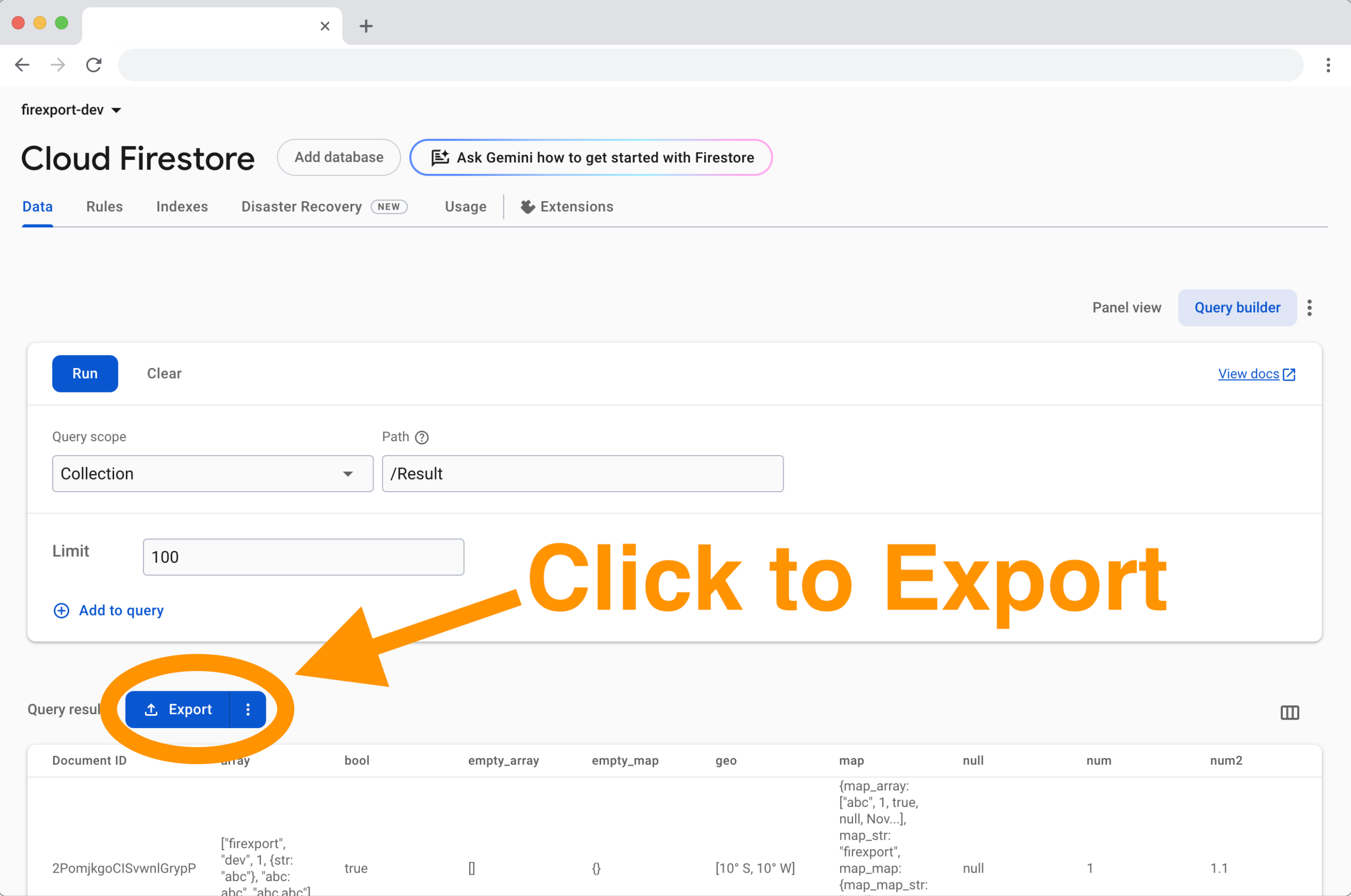
Firexport は、Firebase コンソールの Firestore のクエリビルダー(Query builder)にエクスポート ボタンを追加する無料の Chrome 拡張機能です。本番のサンプルを JSON としてエクスポートし、短い Admin SDK スクリプトでエミュレータに書き込みます。課金もサービス アカウント キーも不要です。
- Chrome ウェブストアから Firexport をインストールします。
- Firebase コンソールで Firestore Database を開き、クエリビルダー(Query builder)に切り替えてコレクションを選び、欲しいサンプルに合わせて上限やフィルタを加えて、実行(Run)をクリックします。
- エクスポートの横の ⋮ メニューを開き、JSON にエクスポートを選びます。
- エミュレータを起動:
firebase emulators:start --only firestore --project your-project-id npm install firebase-adminを実行し、下のスクリプトをseed-emulator.mjsとして保存して、your-project-idをエミュレータのプロジェクト ID に、TYPESを自分のフィールドに合わせて書き換え、node seed-emulator.mjs orders.json ordersを実行します。
// Usage: node seed-emulator.mjs orders.json orders   → writes a Firexport JSON export into the emulator's orders
// Start the emulator first (firebase emulators:start). This script never writes to production.
import { readFileSync } from 'node:fs';
import { initializeApp } from 'firebase-admin/app';
import { getFirestore, GeoPoint, Timestamp } from 'firebase-admin/firestore';

process.env.FIRESTORE_EMULATOR_HOST ??= '127.0.0.1:8080'; // the Admin SDK now talks to the emulator only
// The project ID the emulator runs with (firebase use, or --project). Another ID hides the data from the Emulator UI.
initializeApp({ projectId: 'your-project-id' });
const db = getFirestore();
const [file, collection] = process.argv.slice(2);
if (!file) throw new Error('Usage: node seed-emulator.mjs <file.json> [collection]');

// JSON has no timestamps, geopoints or references: list the fields that hold them. A dot reaches into a map.
const TYPES = { createdAt: 'timestamp', location: 'geopoint', owner: 'reference' };

function convert(type, value) {
  if (type === 'timestamp') {
    // ISO 8601 (Advanced), milliseconds, or the English console's text ("August 24, 2026 at 1:16:09 PM UTC+9")
    const date = new Date(typeof value === 'number' ? value : String(value).replace(' at ', ' '));
    if (Number.isNaN(date.getTime())) throw new Error(`not a timestamp: ${value}`);
    return Timestamp.fromDate(date);
  }
  if (type === 'geopoint') {
    if (typeof value === 'object') return new GeoPoint(value.latitude, value.longitude); // Advanced
    const m = String(value).match(/([\d.]+)° ([NS]), ([\d.]+)° ([EW])/); // the console's "[37.5665° N, 126.978° E]"
    if (!m) throw new Error(`not a geopoint: ${value}`);
    return new GeoPoint(m[1] * (m[2] === 'S' ? -1 : 1), m[3] * (m[4] === 'W' ? -1 : 1));
  }
  if (type === 'reference') {
    // "projects/p/databases/(default)/documents/users/u1" (Advanced) or "/users/u1" (the console's text)
    const path = String(value).replace(/^projects\/[^/]+\/databases\/[^/]+\/documents\//, '').replace(/^\//, '');
    if (path.includes('...')) throw new Error(`reference cut short by the console: ${value}`);
    return db.doc(path);
  }
  return value;
}

function toFirestore(data, prefix = '') {
  const out = {};
  for (const [key, value] of Object.entries(data)) {
    const path = prefix + key;
    if (TYPES[path] && value !== null) out[key] = convert(TYPES[path], value);
    else if (value && typeof value === 'object' && !Array.isArray(value)) out[key] = toFirestore(value, `${path}.`);
    else out[key] = value;
  }
  return out;
}

const rows = JSON.parse(readFileSync(file, 'utf8'));
// Convert every row before writing, so a bad value stops the script before anything is written.
const docs = rows.map(({ 'Document ID': id, 'Document Path': docPath, ...data }, index) => {
  // "Document Path" (Firexport's Include document path setting) also places subcollection documents.
  if (!docPath && !collection) throw new Error('No Document Path column: pass the collection to write to');
  try {
    return { ref: docPath ? db.doc(docPath) : db.collection(collection).doc(String(id)), data: toFirestore(data) };
  } catch (error) {
    throw new Error(`Row ${index + 1}: ${error.message}`);
  }
});

const writer = db.bulkWriter();
const failures = [];
for (const { ref, data } of docs) writer.set(ref, data).catch((error) => failures.push(`${ref.path}: ${error.message}`));
await writer.close();
console.log(`Wrote ${docs.length - failures.length} of ${docs.length} documents to the emulator`);
failures.forEach((failure) => console.log(failure));- スクリプトはクライアントを作る前に
FIRESTORE_EMULATOR_HOSTを設定するので、書き込み先は必ずエミュレータです。エミュレータでも Admin SDK の書き込みにはセキュリティ ルールが適用されず、もう一度実行すると同じ ID が上書きされます。 - JSON は数値、ブール値、null、マップ、配列を保ちます。タイムスタンプ、ジオポイント、参照はテキストとして届くので、それらのフィールドを
TYPESに書いてください(settings.updatedAtはマップの中を指します)。書かないと文字列のままです。 - Firexport Advanced はそれらの値を完全な形で書き出します。タイムスタンプは ISO 8601、参照は完全なパス、ジオポイントは緯度と経度です。無料版はコンソールの表示どおりに書き出します。スクリプトはそれも読めますが、タイムスタンプは英語のコンソールのものだけを秒単位で読み、コンソールが
...で省略した参照では止まります。 - サブコレクションの場合は、コレクション グループとしてクエリを実行し、メニューの設定でドキュメント パスを含めるをオンにします。各行に
Document Pathが付き、スクリプトは各ドキュメントをそのパスに書き込むので、コレクションの引数は省略できます。
本番のサンプルをコンソールから JSON にエクスポートして、エミュレータに投入しましょう。
 Chrome に追加 — 無料
2. Admin SDK スクリプトで本番からコピー
このスクリプトは、指定したコレクションを自分の認証情報で本番から読み取り、各ドキュメントをサブコレクションも含めてエミュレータの同じパスに書き込みます。値はタイムスタンプ、ジオポイント、バイト、参照まで Firestore のタイプを保ちます。アカウントには読み取り権限が必要です。オーナー、編集者、または Cloud Datastore 閲覧者のロールです。
- SDK をインストール:
npm install firebase-admin - ローカルの認証情報でサインイン:
gcloud auth application-default login - 同じプロジェクト ID でエミュレータを起動:
firebase emulators:start --only firestore --project your-project-id - スクリプトを
copy-to-emulator.mjsとして保存し、PROJECT_IDを書き換えて、FIRESTORE_EMULATOR_HOSTのないシェルでnode copy-to-emulator.mjs users ordersを実行します。
// Usage: node copy-to-emulator.mjs users orders   → copies those collections, subcollections included, into the emulator
// Reads production with your own credentials and writes only to the emulator. Start the emulator first.
import { initializeApp } from 'firebase-admin/app';
import { getFirestore } from 'firebase-admin/firestore';

// With this variable set, the "production" app below would read the emulator instead.
if (process.env.FIRESTORE_EMULATOR_HOST) throw new Error('Unset FIRESTORE_EMULATOR_HOST first');
const PROJECT_ID = 'your-project-id';
const LIMIT = 1000; // documents per collection, at each level: every document read is billed

const prod = getFirestore(initializeApp({ projectId: PROJECT_ID }, 'production'));
const local = getFirestore(initializeApp({ projectId: PROJECT_ID }, 'emulator'));
// Every write goes to this host. With ssl: false the SDK sends the emulator's admin token, so rules don't apply.
local.settings({ host: '127.0.0.1:8080', ssl: false });

const writer = local.bulkWriter();
let copied = 0;
async function copy(collectionRef) {
  const snapshot = await collectionRef.limit(LIMIT).get();
  for (const doc of snapshot.docs) {
    // The same path in the emulator. Timestamps, geopoints, bytes and references keep their types.
    writer.set(local.doc(doc.ref.path), doc.data()).then(() => copied++);
    for (const sub of await doc.ref.listCollections()) await copy(sub);
  }
}

const collections = process.argv.slice(2);
if (collections.length === 0) throw new Error('Usage: node copy-to-emulator.mjs <collection> [more collections]');
for (const id of collections) await copy(prod.collection(id));
await writer.close();
console.log(`Copied ${copied} documents into the emulator`);- アプリが 2 つ必要なのは、
FIRESTORE_EMULATOR_HOSTがあると、本番用も含めてすべての Admin SDK クライアントがエミュレータにつながるからです。そのため、この変数が設定されているとスクリプトは実行を拒み、2 つ目のクライアントだけを127.0.0.1:8080に向けます。 LIMITは各コレクションの件数の上限で、どの階層にも適用されます。ドキュメント 1 件が課金される読み取り 1 回で、そのサブコレクションの一覧でさらに 1 回かかります。- それ自体は存在せずサブコレクションだけを持つドキュメント(コンソールが ID を斜体で表示するもの)は、その下のものごとスキップされます。
- 実在するユーザーの名前やメールアドレスをノート PC に置きたくなければ、書き込む前に変えてください。たとえば
{ ...doc.data(), email: `${doc.id}@example.com` }のようにします。
3. マネージド エクスポートを --import で読み込む
エミュレータはデータを Firestore のマネージド エクスポートと同じ形式で保存し、--import はマネージド エクスポートも読めます。ダウンロードして、そのフォルダを渡すだけです。課金の有効化(Blaze プラン)、Cloud Storage バケット、そしてオーナーのロール、または Cloud Datastore インポート / エクスポート管理者とストレージ管理者のロールが必要です。
# 1. Export the database to a bucket (Blaze plan, one read per document).
gcloud firestore export gs://YOUR_BUCKET/prod-export --project=your-project-id

# 2. Download it.
gcloud storage cp -r gs://YOUR_BUCKET/prod-export .

# 3. Start the emulator with it, and save to ./seed when you stop it.
firebase emulators:start --only firestore --import=./prod-export --export-on-exit=./seed.overall_export_metadataファイルが入っているフォルダを渡し、2 つは同じ名前のままにしておきます(prod-export/prod-export.overall_export_metadata)。CLI には「Detected non-emulator Firestore export」と表示されます。古い回答ではそのためにfirebase-export-metadata.jsonを書いていますが、必要ありません。- インポートしたドキュメントは、エミュレータを起動したプロジェクト ID の下に表示されるので、本番の ID と同じでなくてかまいません。
- エクスポートはドキュメントごとに 1 回の読み取りとして課金されます。終わったら、ストレージの費用がかからないようバケットから削除してください。
起動をまたいでデータを残す
データを入れたら、それをフォルダに保存し、以後はそのフォルダから起動します。中身はエミュレータ自身のエクスポートなので、--import がそのまま読めます。
# Load ./seed at start and write the data back to it when you stop the emulator with Ctrl+C.
firebase emulators:start --import=./seed --export-on-exit

# Or save a running emulator's data at any time.
firebase emulators:export ./seed

# In CI: start the emulator with the data, run the tests, stop.
firebase emulators:exec --only firestore --import=./seed "npm test"--export-on-exitが書き出すのは、エミュレータが正常に終了したときだけです。プロセスが強制終了されると、起動してからの変更は失われます。- フォルダをコミットしてチームと CI に同じデータを渡すか、実在するユーザーのデータを含むなら
.gitignoreに追加します。 - 本番が Firestore の Enterprise エディションなら、
firebase.jsonのfirestoreに"edition": "enterprise"を書きます。どのエディションで起動したかはエミュレータのログに出ます。15.12 のような古い Firebase CLI はこの設定を無視します。
Emulator UI にデータが表示されないとき
| 見えるもの | 理由 | 直し方 |
|---|---|---|
| スクリプトはドキュメントを書き込んだと表示するのに、UI が空 | エミュレータは書き込まれたデータをプロジェクト ID ごとに保持し、スクリプトは別の ID を使った | エミュレータを起動した ID を使う(firebase use または --project) |
| ドキュメントが本番に書き込まれた | クライアントを作ったときに FIRESTORE_EMULATOR_HOST が設定されていなかった | シード スクリプトと同じように、getFirestore() の前に 127.0.0.1:8080 に設定する |
| 名前付きデータベースが空に見える | UI はデフォルトのデータベースを開く | localhost:4000/firestore/DATABASE_ID/data を開く |
| 再起動するとデータが消える | エミュレータはデータをメモリにしか持たない | --import=./seed --export-on-exit を付けて起動する |
| アプリに古いデータが表示されたまま | クライアント SDK のオフライン キャッシュ | エミュレータを使う間はオフライン永続性をオフにする |
FAQ
firebase emulators:start --import で gcloud firestore export のエクスポートを読めますか?
はい、ディスクにダウンロードすれば読めます。gcloud storage cp でエクスポートのフォルダをダウンロードし、--import に渡します。Firebase CLI が中の .overall_export_metadata ファイルを見つけて読み込みます。フォルダとこのファイルは、エクスポートの名前のままにしておきます。
Blaze プランなしで本番データをエミュレータに読み込めますか?
はい。マネージド エクスポートには課金が必要ですが、ほかの 2 つの方法は不要です。本番を読み取ってエミュレータに書き込む Admin SDK スクリプトと、コンソールからの JSON エクスポート(たとえば Firexport)をシード スクリプトでエミュレータに書き込む方法です。どちらも本番のドキュメントを読み取るので、1 日 50,000 回の無料の読み取りから差し引かれます。
Firestore エミュレータのデータを再起動のあとも残すにはどうしますか?
firebase emulators:start --import=./seed --export-on-exit で起動します。起動時にフォルダを読み込み、Ctrl+C で停止したときにデータを書き戻します。実行中のエミュレータは、firebase emulators:export ./seed でいつでも保存できます。
投入したデータが Emulator UI に表示されないのはなぜですか?
たいていはプロジェクト ID です。エミュレータは SDK から書き込まれたデータをプロジェクト ID ごとに保持し、UI はエミュレータを起動した ID のデータを表示します。Admin SDK をその同じ ID で初期化してください。ドキュメントが本番に入ってしまったなら、クライアントを作る前に FIRESTORE_EMULATOR_HOST が設定されていませんでした。
エミュレータにデータを投入するとき、セキュリティ ルールは適用されますか?
いいえ。Admin SDK は管理者としてエミュレータに接続するので、どんなルールでも投入できます。クライアント SDK を通したアプリのリクエストは、引き続き firestore.rules でチェックされます。